Back to documentation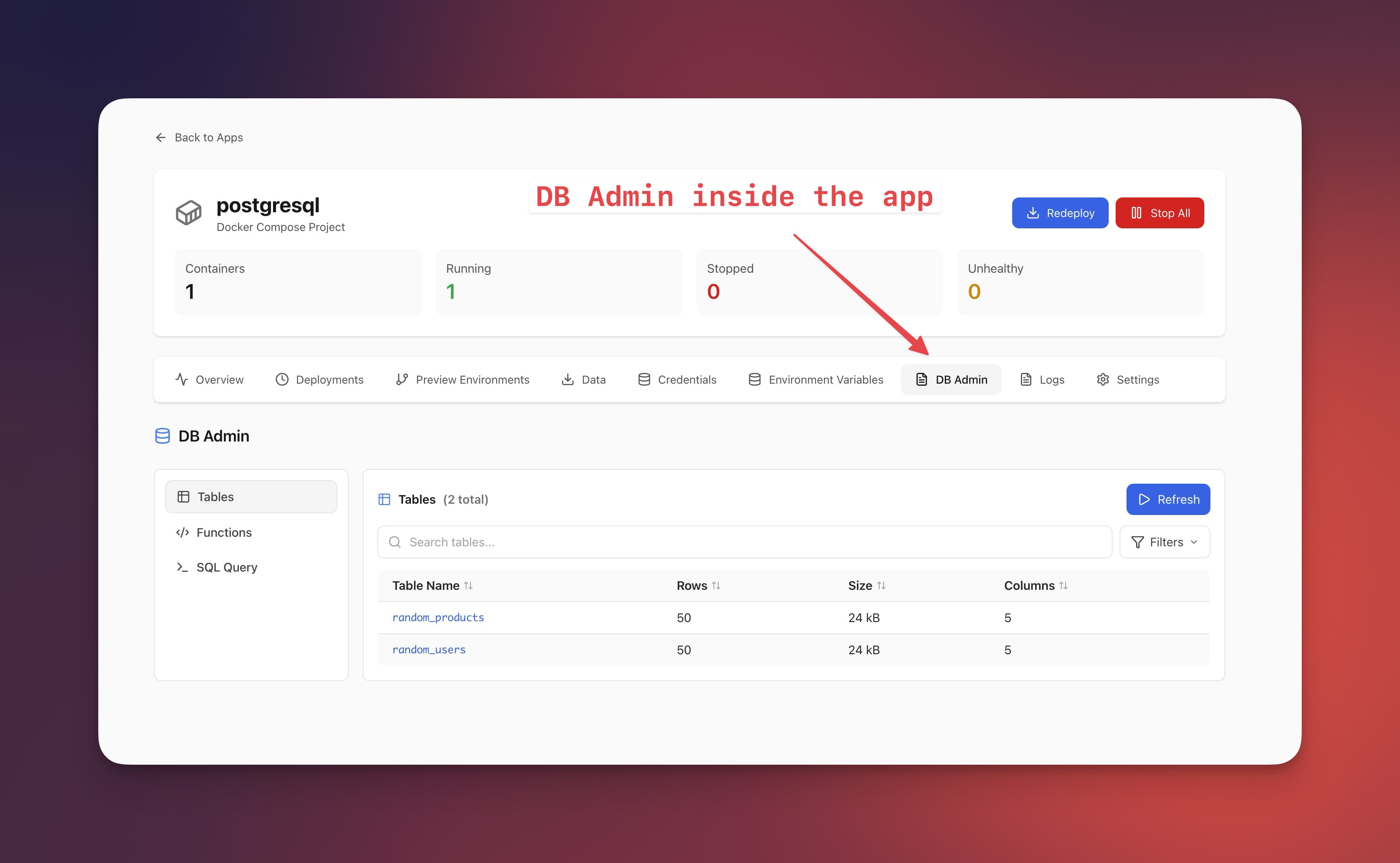
Database
Using the Database Admin Interface
Query, browse, and manage your databases visually without external tools.
Intermediate7 min readUpdated 2024-02-01
Accessing database admin
For apps with database containers:
- Open the app in Server Compass
- Go to the "Database" tab
- Server Compass auto-detects supported databases
- Click "Open Admin" to launch the interface
Supported databases
Server Compass supports:
- SQL: PostgreSQL, MySQL, MariaDB
- NoSQL: MongoDB, Redis, CouchDB, Cassandra
- Search: Elasticsearch, OpenSearch
Running queries
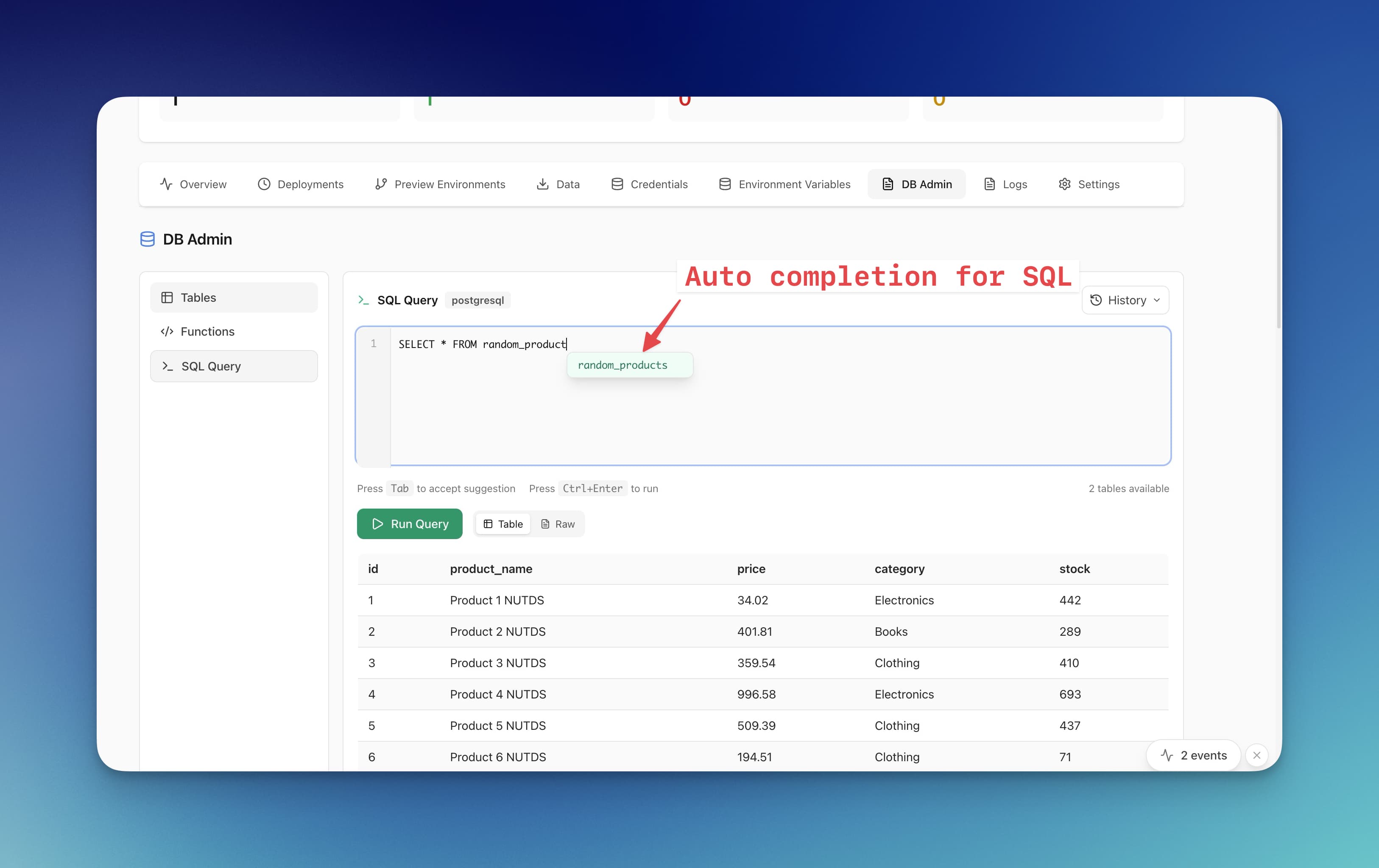
Use the built-in query editor:
- Select your database/collection
- Write your SQL or database-specific query
- Click "Run" or press Cmd/Ctrl + Enter
- View results in a formatted table
- Export results as CSV or JSON
Browsing data
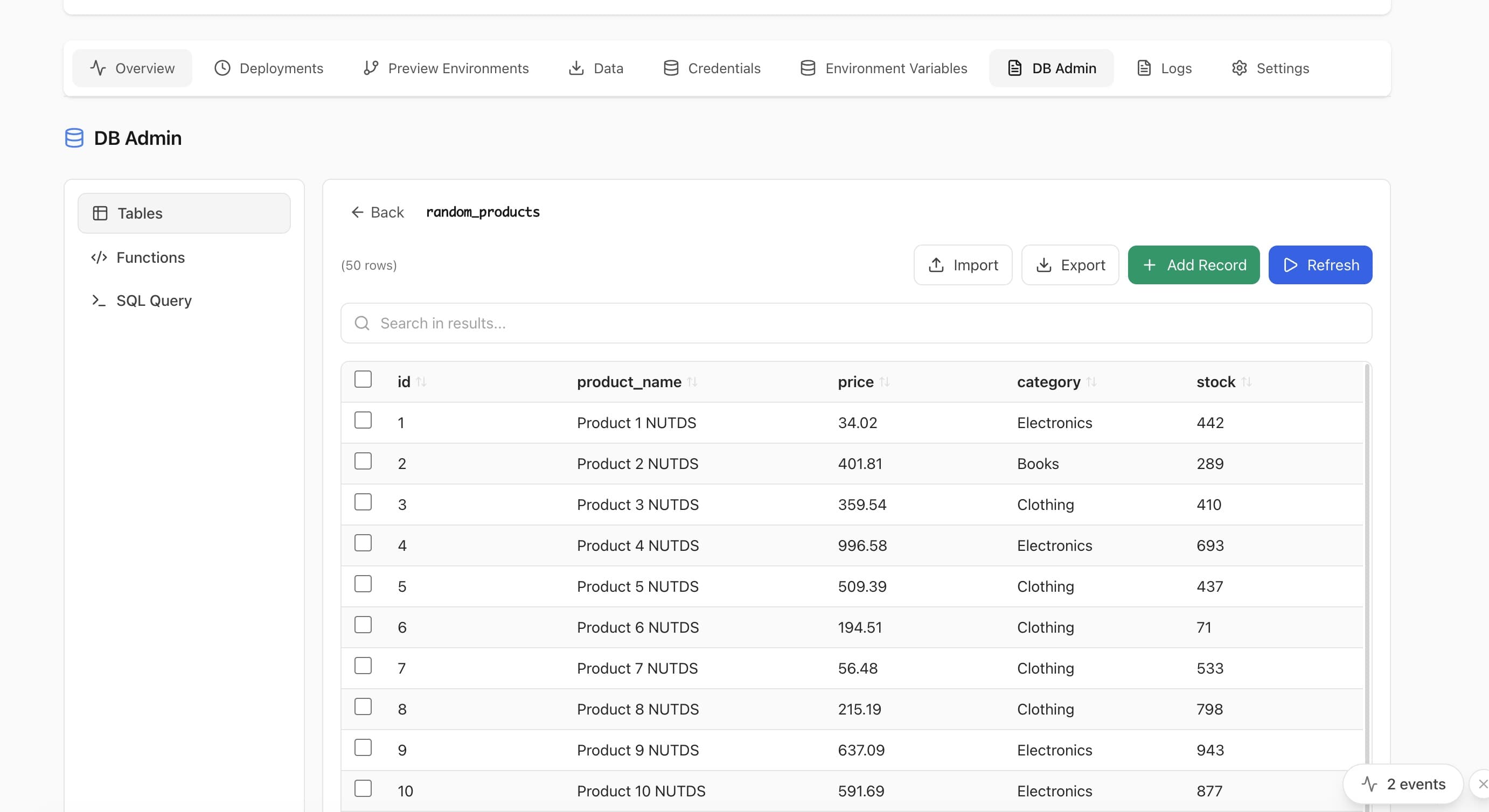
Browse data visually:
- Select a table/collection
- View data in a spreadsheet-like interface
- Sort and filter columns
- Edit individual cells (for supported databases)
Screenshots
Video Tutorials
Related Features
Database Admin Interface
Full database management UI for SQL and NoSQL databases. Query, browse tables, and manage data visually.
SQL Query Editor
Execute SQL queries directly on connected databases. Syntax highlighting, results table, and query history.
NoSQL Query Editors
Specialized query editors for MongoDB, Elasticsearch, CouchDB, and Cassandra. Native query syntax support.
Tables & Schema Browser
Browse database tables, view schemas, column types, and relationships. Understand your data structure visually.
Ready to try Server Compass?
Download the app and deploy your first application in under 5 minutes.
Download Server Compass