Back to documentation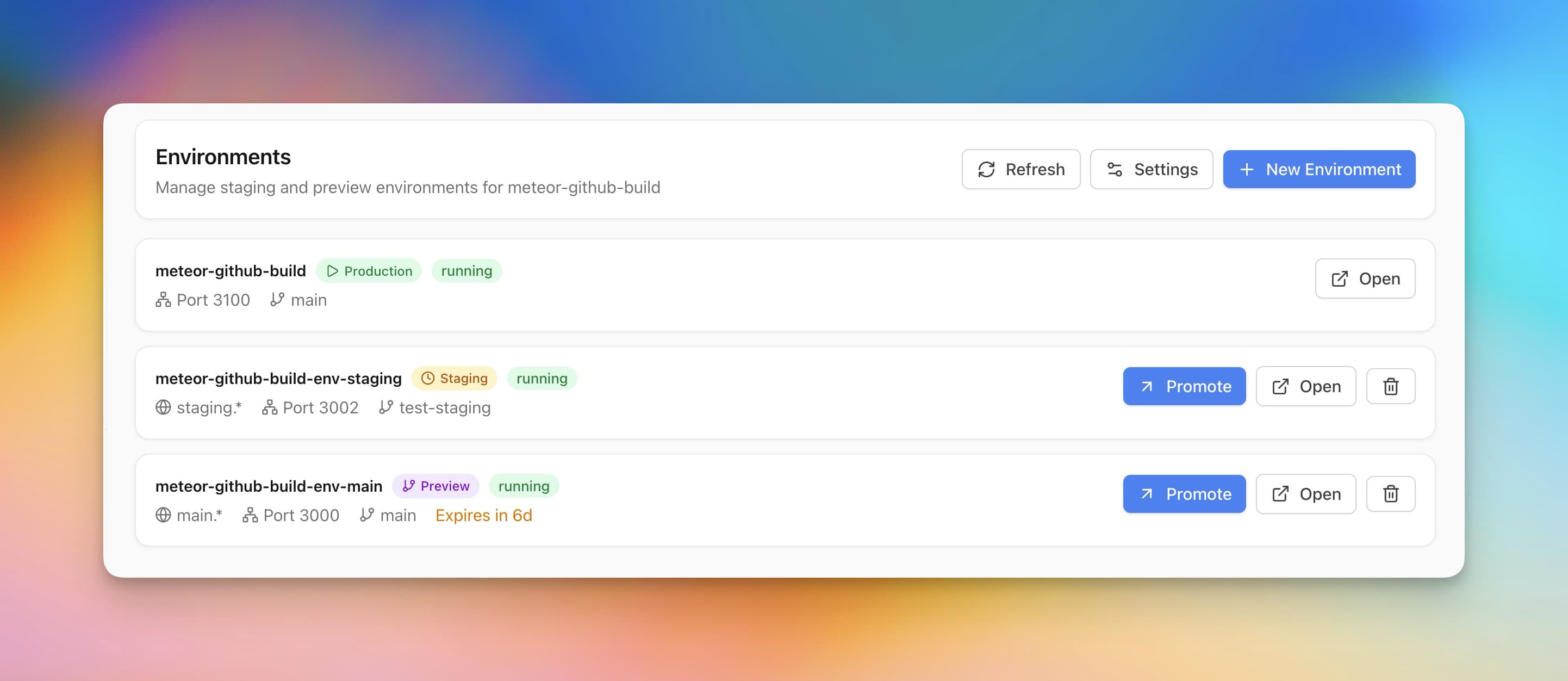
Deployment
Staging & Preview Environments
Create staging and preview environments alongside production for safe testing.
Intermediate5 min readUpdated 2026-03-29
Creating a preview environment
Preview environments let you test changes before going live:
- Open your app and go to the Environments section
- Click Create Preview Environment
- Select the branch to deploy
- Server Compass creates an isolated container with its own domain
- Preview branches auto-delete on a configurable timer
Staging vs preview
- Staging — A persistent environment that mirrors production. Use for QA and integration testing.
- Preview — Temporary environments tied to branches. Auto-created on push, auto-deleted after a timer.
Both run as separate containers with their own environment variables and domains.
Promoting to production
When a preview or staging environment is validated:
- Click Promote to Production
- Server Compass redeploys the same image/branch to production
- If zero-downtime is enabled, the swap happens without interruption
Screenshots
Related Features
Ready to try Server Compass?
Download the app and deploy your first application in under 5 minutes.
Download Server Compass