Shared Terminal Sessions
Publish a live terminal to your workspace so teammates can join it, watch, and take the keyboard when they need it. The session keeps running whether or not your window is open.
Getting Started with Shared Terminal Sessions
Using Shared Terminal Sessions is straightforward. Follow these simple steps to get started.
Click Share live
The Share live control in the terminal toolbar publishes your session to the workspace as a discoverable tmux session. It survives your window being closed.
Teammates Join read-only
Anyone with access to that server finds the session and joins as a watcher. You can see how many people are attached while you work.
Hand over control on request
A viewer clicks Request control and you are prompted to hand it off with one click. Control moves to one person at a time.
Set the defaults once
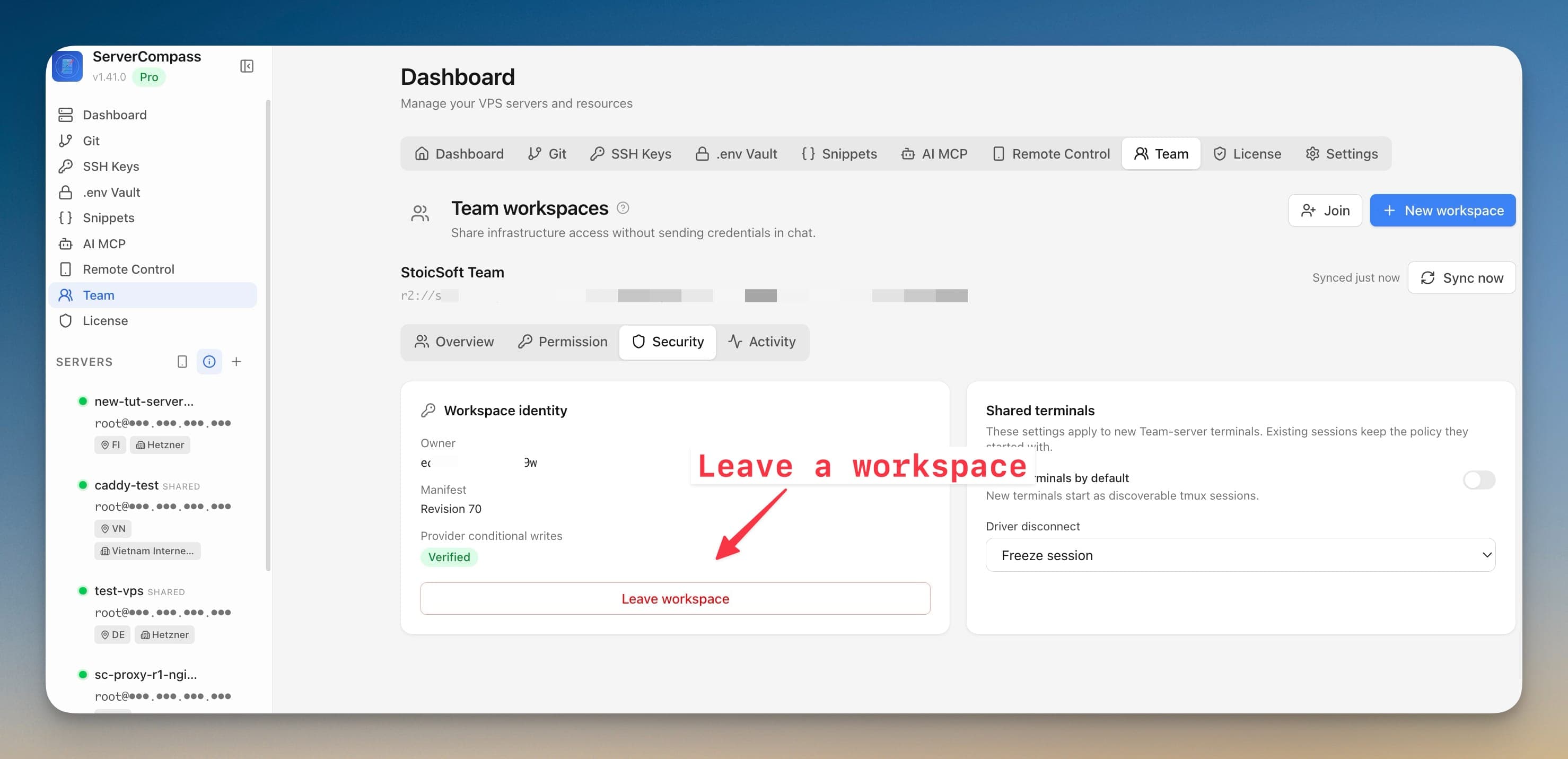
Under Security, turn on Share terminals by default so new Team-server terminals start joinable, and pick a Driver disconnect policy: Freeze session, or let a viewer take over.
What If You Don't Have Shared Terminal Sessions?
Before Shared Terminal Sessions, this is what server management looked like. Spoiler: it wasn't fun.
Set up a shared tmux socket by hand
Two people sharing one terminal means creating a session on a socket both accounts can open.
tmux -S /tmp/shared new-session -d -s pair
chmod 770 /tmp/shared
sudo chgrp developers /tmp/sharedHave the other person attach
They need an account on the same host, membership of the right group, and the exact socket path.
ssh [email protected]
tmux -S /tmp/shared attach -t pairMake it read-only if you do not want them typing
tmux has no per-viewer permission model, so read-only means attaching in a separate grouped session with input disabled.
tmux -S /tmp/shared new-session -t pair -s viewer -rEveryone attached runs as the socket owner. tmux cannot tell you who typed what, so a shared session has no attribution.
One Click > 50 Commands
Stop copy-pasting commands from Stack Overflow. Shared Terminal Sessions gives you a proper interface for server management.
- No SSH required
- Guided workflows
- Undo support
- Multi-server management
What Shared Terminal Sessions Can Do
Everything you need for ssh terminal in one integrated tool, replacing complex CLI commands and manual configuration.
Get StartedBenefits of Shared Terminal Sessions
Server management shouldn't require a DevOps team. Shared Terminal Sessions makes professional-grade ssh terminal accessible to everyone.
No External Tools
Shared Terminal Sessions runs directly in Server Compass, so you never need to install or configure PuTTY, iTerm, or other SSH clients.
Smart Assistance
Shared Terminal Sessions suggests commands and corrects typos, speeding up your terminal workflow significantly.
Secure Connection
Shared Terminal Sessions uses your existing SSH credentials with encrypted connections for every session.
Session Persistence
Shared Terminal Sessions maintains terminal sessions even while you navigate other parts of the application.
Shared Terminal Sessions FAQ
Common questions about Shared Terminal Sessions in Server Compass
How do I access Shared Terminal Sessions in Server Compass?
Shared Terminal Sessions is available in the SSH Terminal section of Server Compass. Simply connect to your server, navigate to SSH Terminal, and you'll find Shared Terminal Sessions ready to use. No additional setup or plugins required.
Does Shared Terminal Sessions require any server-side installation?
No. Server Compass operates as a desktop application that connects to your server via SSH. Shared Terminal Sessions works through this connection without installing any agents or packages on your server (except the optional monitoring agent for resource tracking).
Is Shared Terminal Sessions included in all Server Compass plans?
Yes. Every Server Compass feature, including Shared Terminal Sessions, is included with the one-time $29 payment. There are no tier restrictions, add-ons, or per-server fees. You get all 152+ features for all your servers.
Can I use Shared Terminal Sessions with any VPS provider?
Shared Terminal Sessions works with any VPS or dedicated server that supports SSH access and Docker. This includes DigitalOcean, Hetzner, Vultr, Linode, AWS EC2, Google Cloud, Azure, and any other provider. It also works with local servers and homelab setups.
What makes Shared Terminal Sessions different from command-line alternatives?
Shared Terminal Sessions provides a visual, intuitive interface that replaces complex CLI commands and configuration files. You get real-time feedback, safety confirmations, and a consistent experience across all your servers without memorizing syntax or writing scripts.
More SSH Terminal Features
Explore other ssh terminal capabilities in Server Compass
Interactive SSH Terminal
Full xterm-based SSH terminal right in the app. Execute commands, view output, and manage your server without external tools.
Multi-Tab Terminal
Open multiple terminal sessions per server with tab management. Run commands in parallel without switching windows.
Command Suggestions
Auto-suggestions for common commands like ls, git, docker, npm, and more. Speed up your terminal workflow.
Command Auto-Correction
Automatically correct common typos like "sl" to "ls" or "docer" to "docker". Save time on frequent mistakes.
Try Shared Terminal Sessions Today
Download Server Compass and get access to Shared Terminal Sessions along with 151 other features. One-time $29 payment. No subscriptions. No per-server fees.