Back to documentation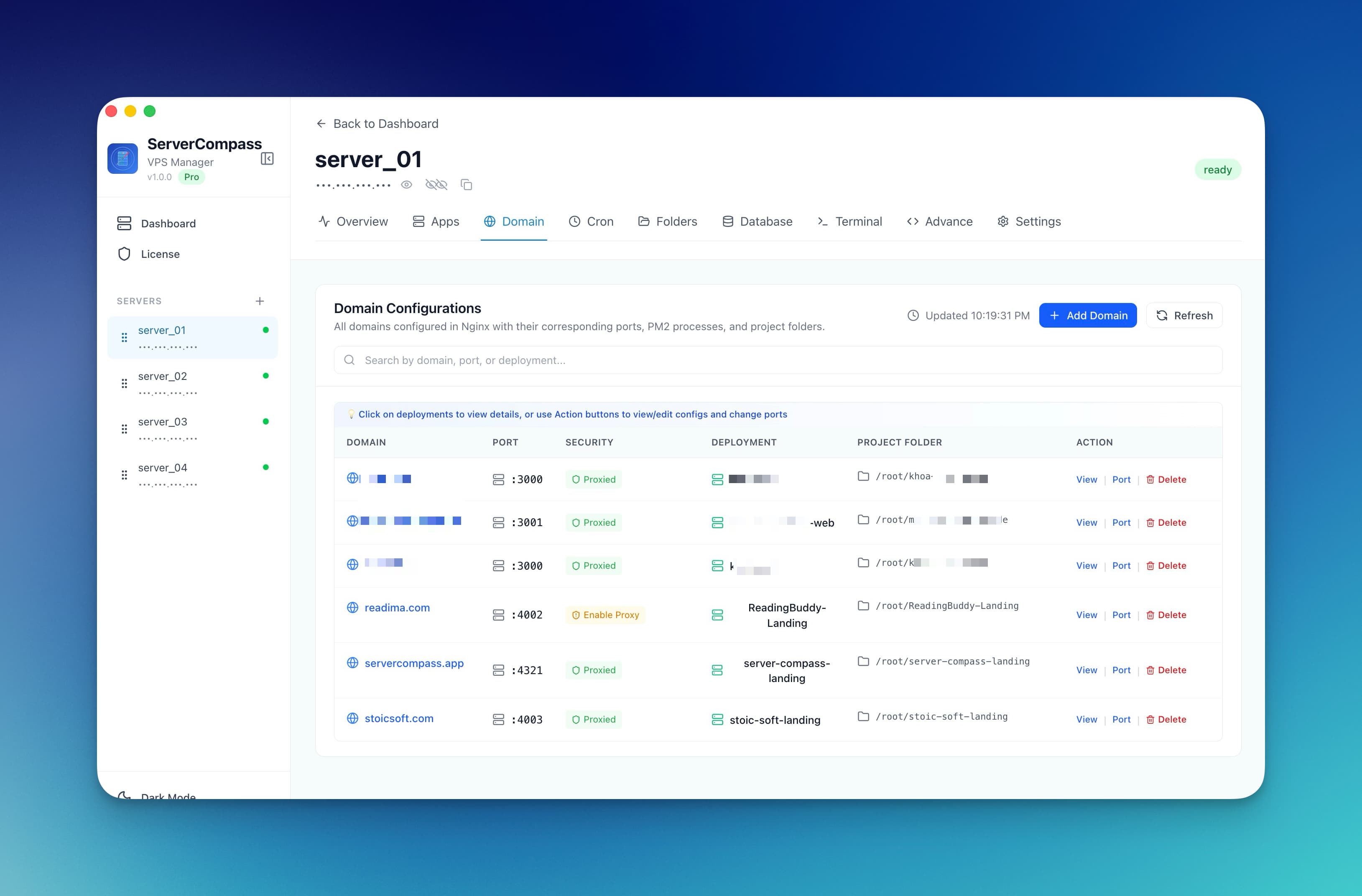
Domains & SSL
Adding a Domain to Your App
Configure a custom domain with automatic SSL certificate for your deployed application.
Beginner6 min readUpdated 2024-02-01
Prerequisites
Before adding a domain:
- Own or have access to a domain
- Access to your domain's DNS settings
- Your app deployed and running in Server Compass
Configure DNS
Point your domain to your server:
- Go to your domain registrar's DNS settings
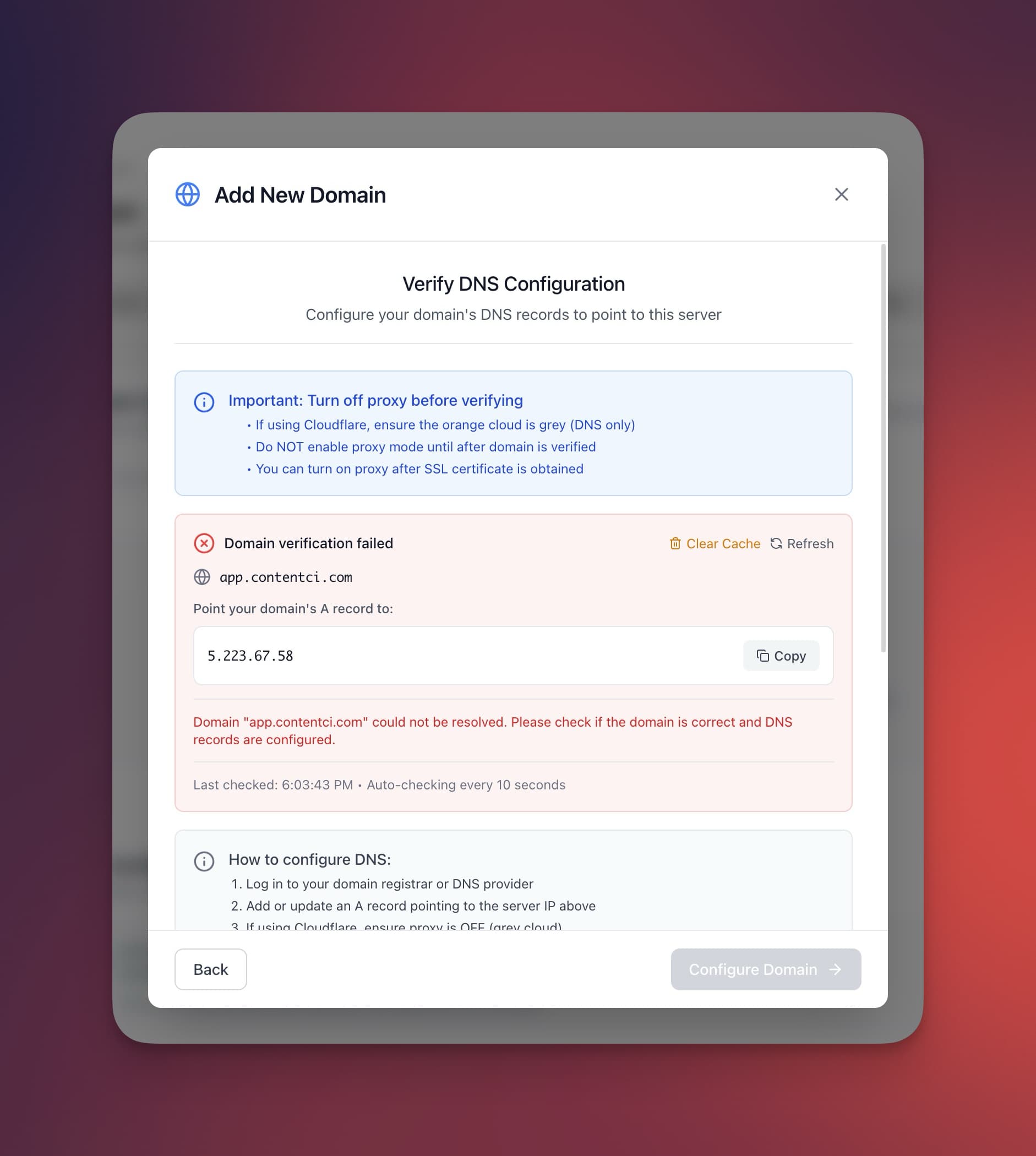
- Add an A record:
- Host: @ (or subdomain like "app")
- Value: Your server's IP address
- TTL: 300 (or automatic)
- Wait for DNS propagation (usually 5-30 minutes)
Add domain in Server Compass
- Open your app in Server Compass
- Go to the "Domains" tab
- Click "Add Domain"
- Enter your domain name
- Click "Verify DNS"
- Once verified, click "Configure"
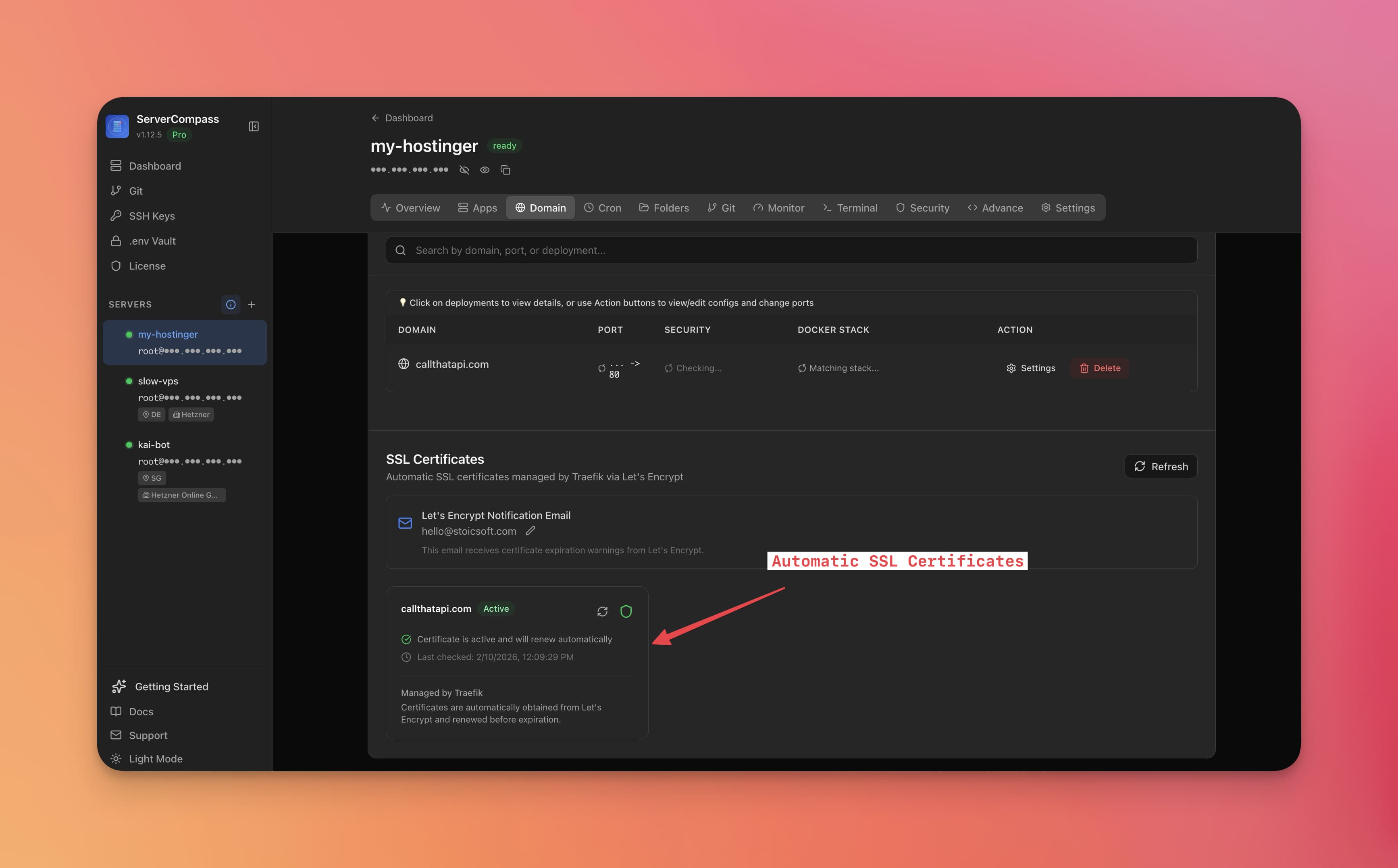
Automatic SSL
Server Compass automatically:
- Verifies DNS is pointing correctly
- Obtains a free Let's Encrypt certificate
- Configures HTTPS for your domain
- Sets up auto-renewal before expiry
No manual SSL configuration needed!
Screenshots
Frequently Asked Questions
How long does SSL certificate take?
Once DNS is verified, SSL certificate is issued within 1-2 minutes automatically.
Can I use Cloudflare proxy?
Yes! Enable the proxy in Cloudflare, then add the domain in Server Compass. SSL will work through Cloudflare.
Video Tutorials
Related Features
Ready to try Server Compass?
Download the app and deploy your first application in under 5 minutes.
Download Server Compass