Back to documentation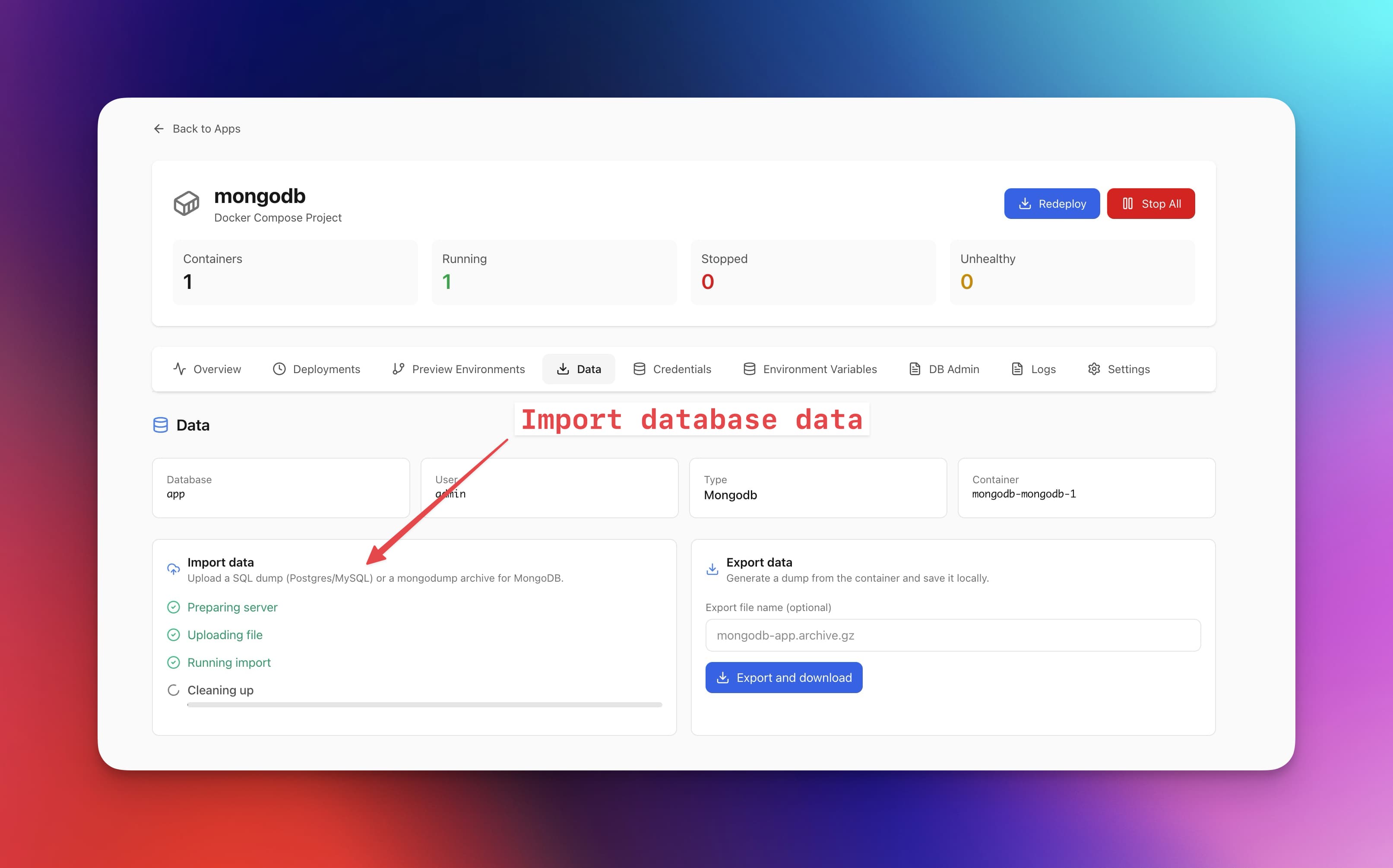
Database
Backing Up and Restoring Databases
Learn how to create database backups and restore them when needed.
Intermediate6 min readUpdated 2024-02-01
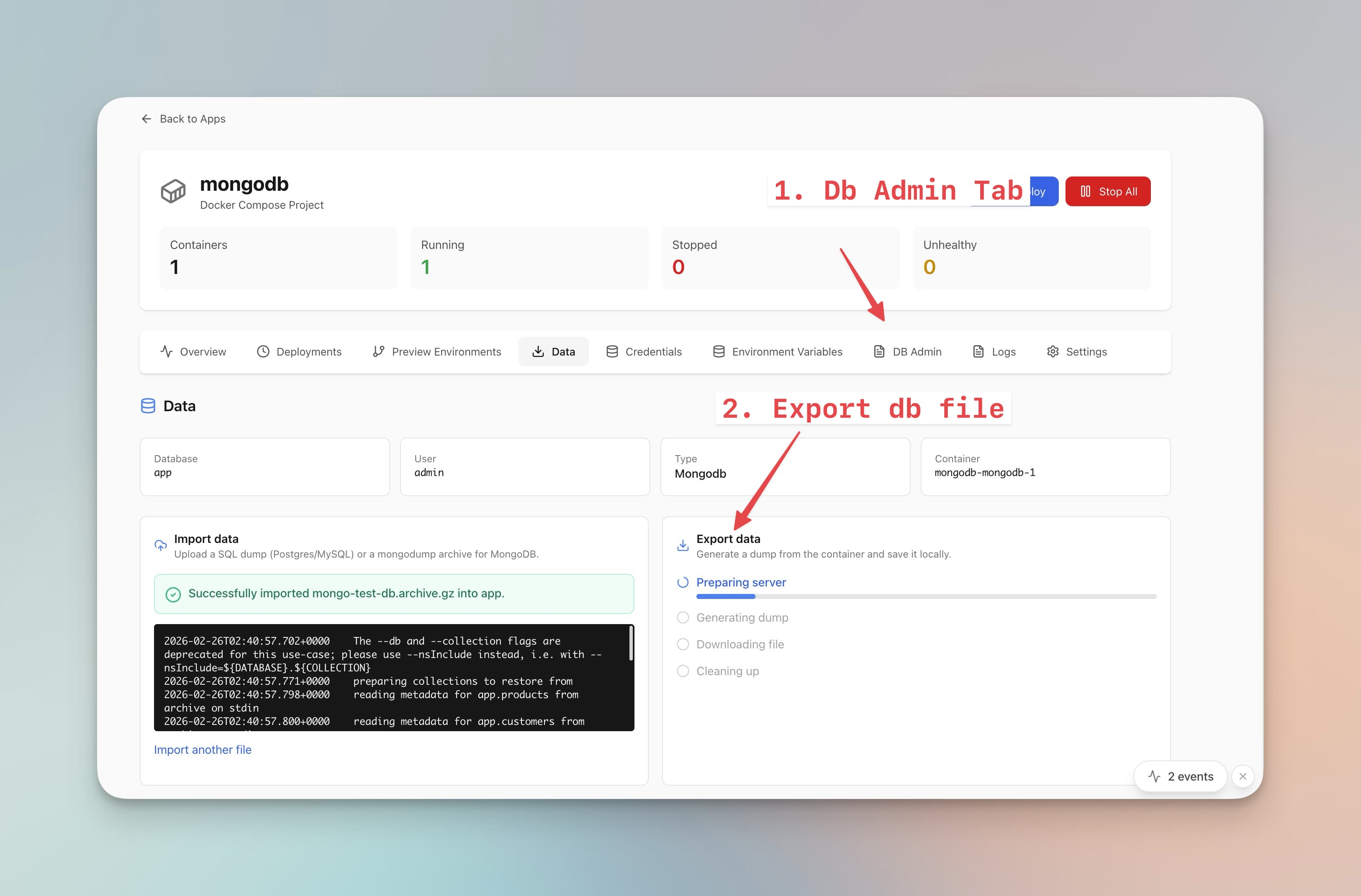
Exporting data
To export database data:
- Open the Database Admin interface
- Select tables/collections to export
- Choose export format (CSV, JSON, SQL dump)
- Click "Export"
- Download the exported file
Creating SQL dumps
For full database backups:
- Go to Database > Backup
- Select the database
- Choose backup options
- Click "Create Backup"
- Download the SQL dump file
Importing data
To import data:
- Open Database Admin
- Click "Import"
- Select your file (CSV, JSON, or SQL)
- Map columns if needed
- Preview the import
- Click "Import"
Scheduled backups
Set up automated backups using cron jobs:
- Go to Cron Jobs
- Use a backup template or create custom
- Schedule daily/weekly backups
- Store backups on the server or external storage
Screenshots
Related Features
Ready to try Server Compass?
Download the app and deploy your first application in under 5 minutes.
Download Server Compass