Device Sync & Conflict Review
Keep your Server Compass data mirrored across machines with encrypted snapshots, and review conflicts item by item instead of overwriting one side.
Turn on Device Sync
Device Sync keeps your Server Compass data — servers, apps, domains, and settings — mirrored across every machine you use, through your own encrypted cloud storage.
- Open Backups > Device Sync
- Under Cross-Device Sync, pick a storage destination (any S3-compatible bucket you already use)
- Use Push Now to upload the current state, or Pull Latest to bring another machine's state down
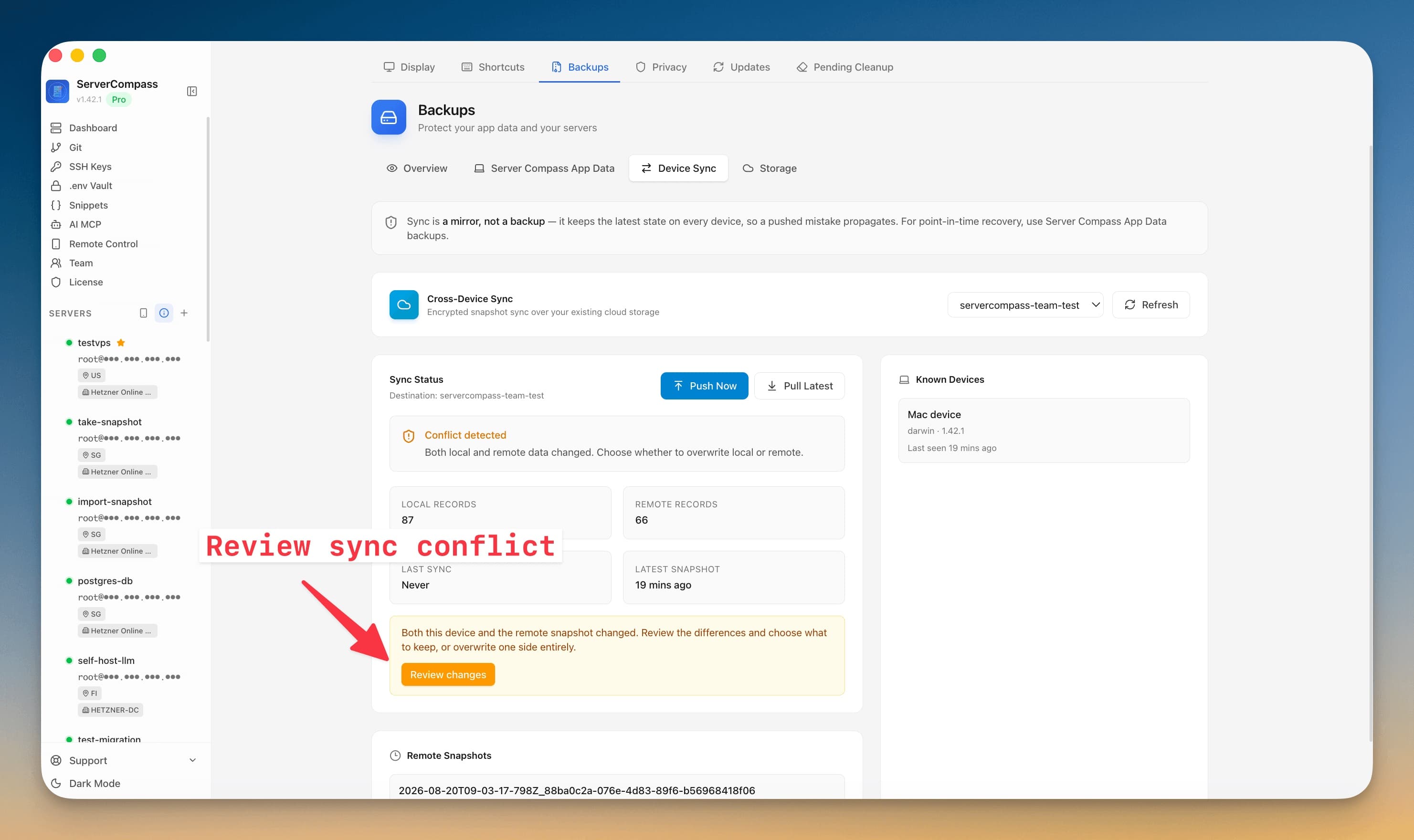
- The Sync Status card shows local and remote record counts, the latest snapshot time, and every device under Known Devices that has connected
Keep in mind that sync is a mirror, not a backup — it keeps the latest state on every device, so a pushed mistake propagates. For point-in-time recovery, use Server Compass App Data backups instead.
Set up a second machine
A fresh install no longer has to add a server before it can sync.
- Install Server Compass on the second machine and open Backups > Device Sync
- Select the same storage destination you used on the first machine
- Click Pull Latest — the connection details come down with the snapshot, so a blank device is treated as empty and pulls cleanly
- Built-in app templates are not counted as your data, so a pull from another machine never overwrites the catalog on this device
Review changes when both sides changed
When both this device and the remote snapshot have changed since the last sync, the Sync Status card shows Conflict detected and offers a Review changes button instead of forcing an overwrite.
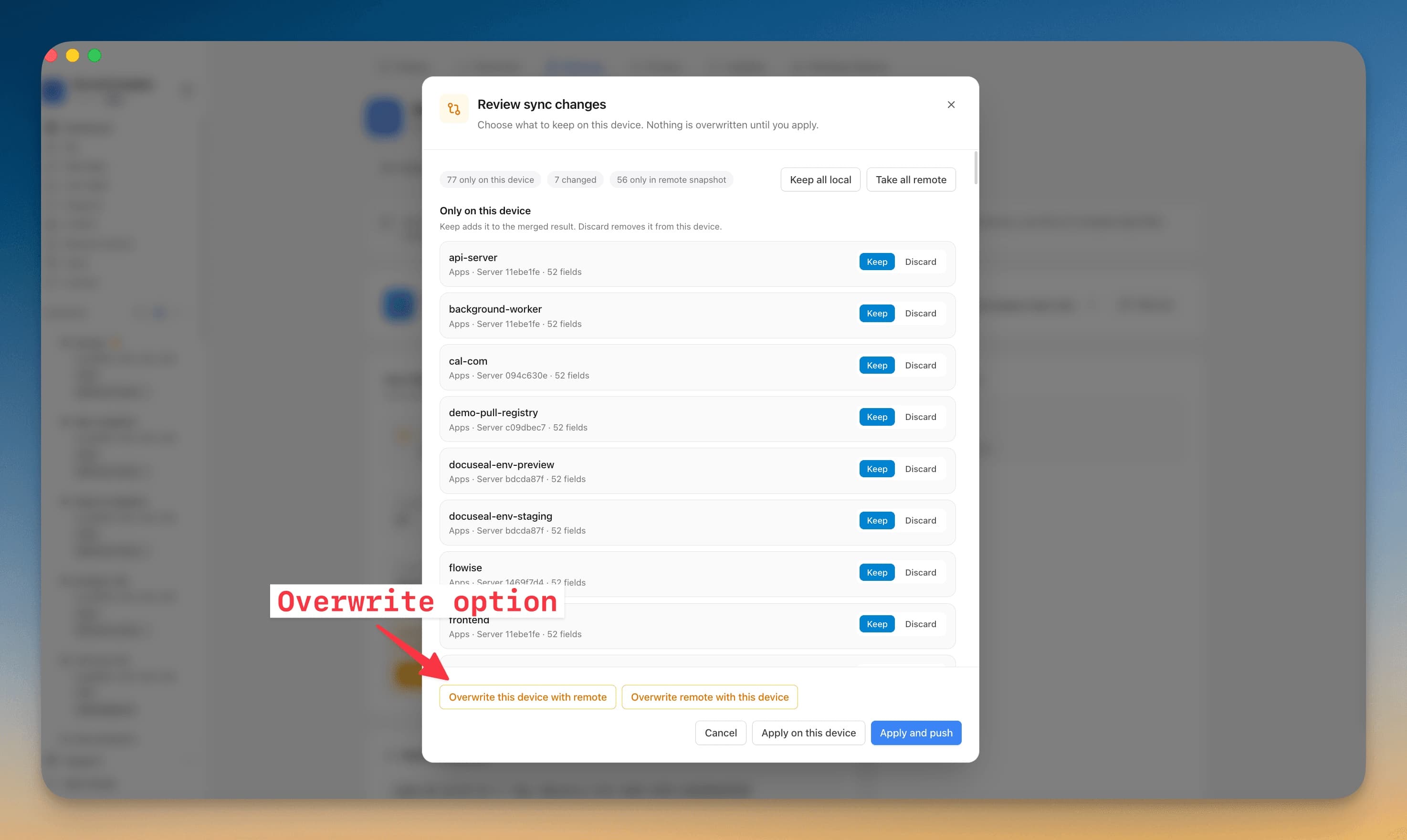
- Click Review changes to open the Review sync changes dialog — nothing is overwritten until you apply
- Differences are grouped into three buckets: items only on this device, items changed on both, and items only in the remote snapshot
- For each item choose Keep or Discard (only on this device), Keep this device or Use remote (changed on both), or Use remote / Skip (only in the remote snapshot)
- Click any changed on both row to open a field-by-field comparison with a This device column beside a Remote column
- Use Keep all local or Take all remote to resolve everything at once
- Finish with Apply on this device to merge locally, or Apply and push to write the merged result back so your other machines converge
Overwrite one side on purpose
If you don't want to merge, the old all-or-nothing path is still available from the same dialog:
- Overwrite this device with remote replaces everything on this machine with the remote snapshot
- Overwrite remote with this device replaces the remote snapshot with this machine's state
Because sync is a mirror, an overwrite propagates to your other devices on their next pull — so use it only when one side is clearly the source of truth.
Screenshots
Related Features
Sync Across Devices
Sync your Server Compass data across machines using encrypted snapshots on your own S3-compatible cloud storage, with participating devices tracked so you always know what is connected. When both devices have changed, review the differences before anything is overwritten — keep or discard each server, app, or domain, and compare what changed on both sides field by field. Apply the merged result on this device or push it so your other machines converge, or fall back to a full overwrite when you want the old all-or-nothing path.
Server Backups & Cloud Storage
Automated backups of stacks, volumes, databases, environment files, SSL certificates, and cron jobs. Store encrypted backups in S3-compatible cloud storage with flexible scheduling — hourly, daily, weekly, or monthly.
Ready to try Server Compass?
Download the app and deploy your first application in under 5 minutes.
Download Server Compass