Server Backups & Snapshots
Create encrypted server snapshots and schedule automated backups to cloud storage.
Creating a server snapshot
Server snapshots capture your entire server state:
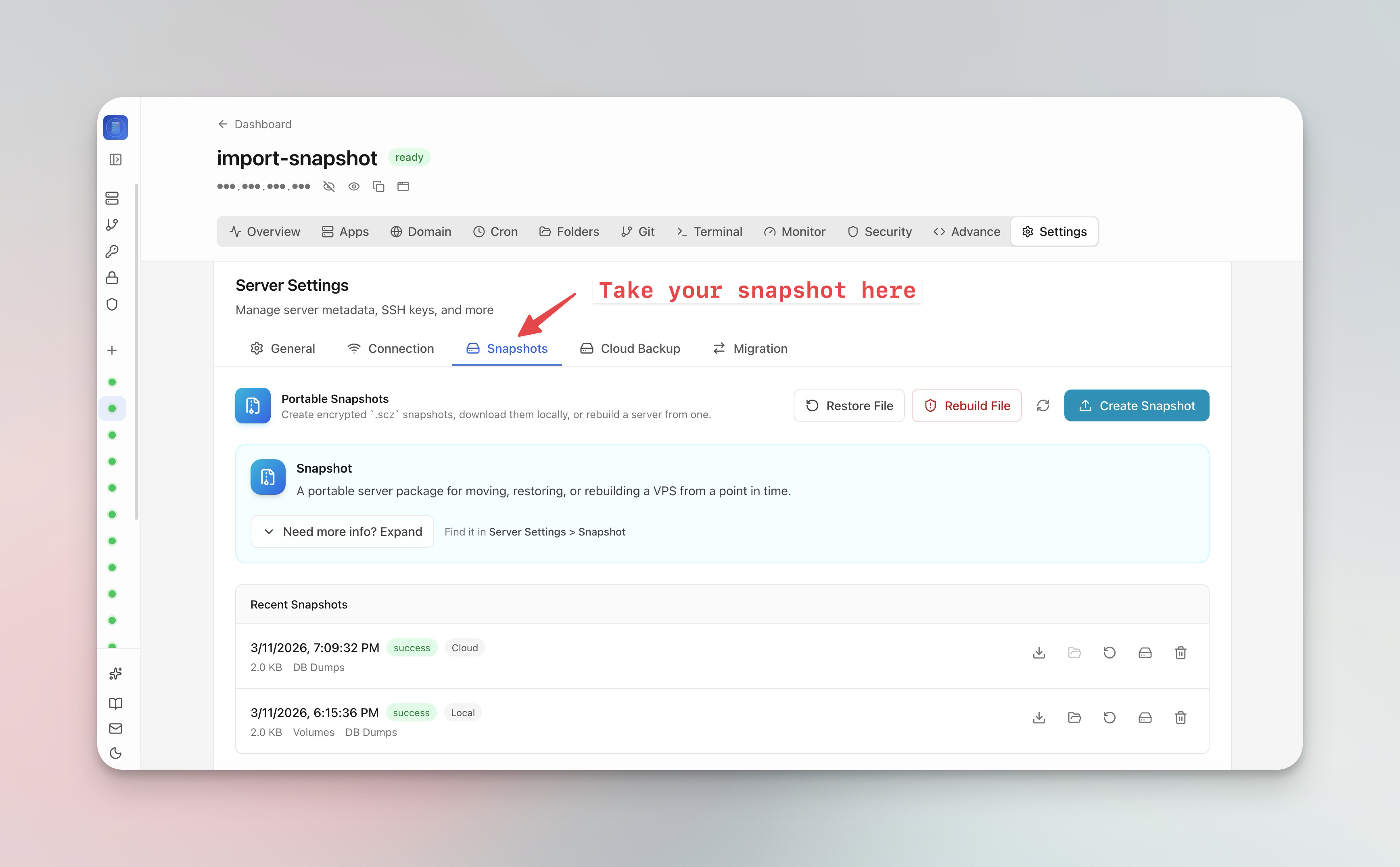
- Go to Server Settings > Snapshot tab
- Click Create Snapshot
- Set an optional encryption passphrase
- The snapshot is uploaded to cloud storage
- Use snapshots to migrate your entire VPS to a new server with one click
Scheduling automated backups
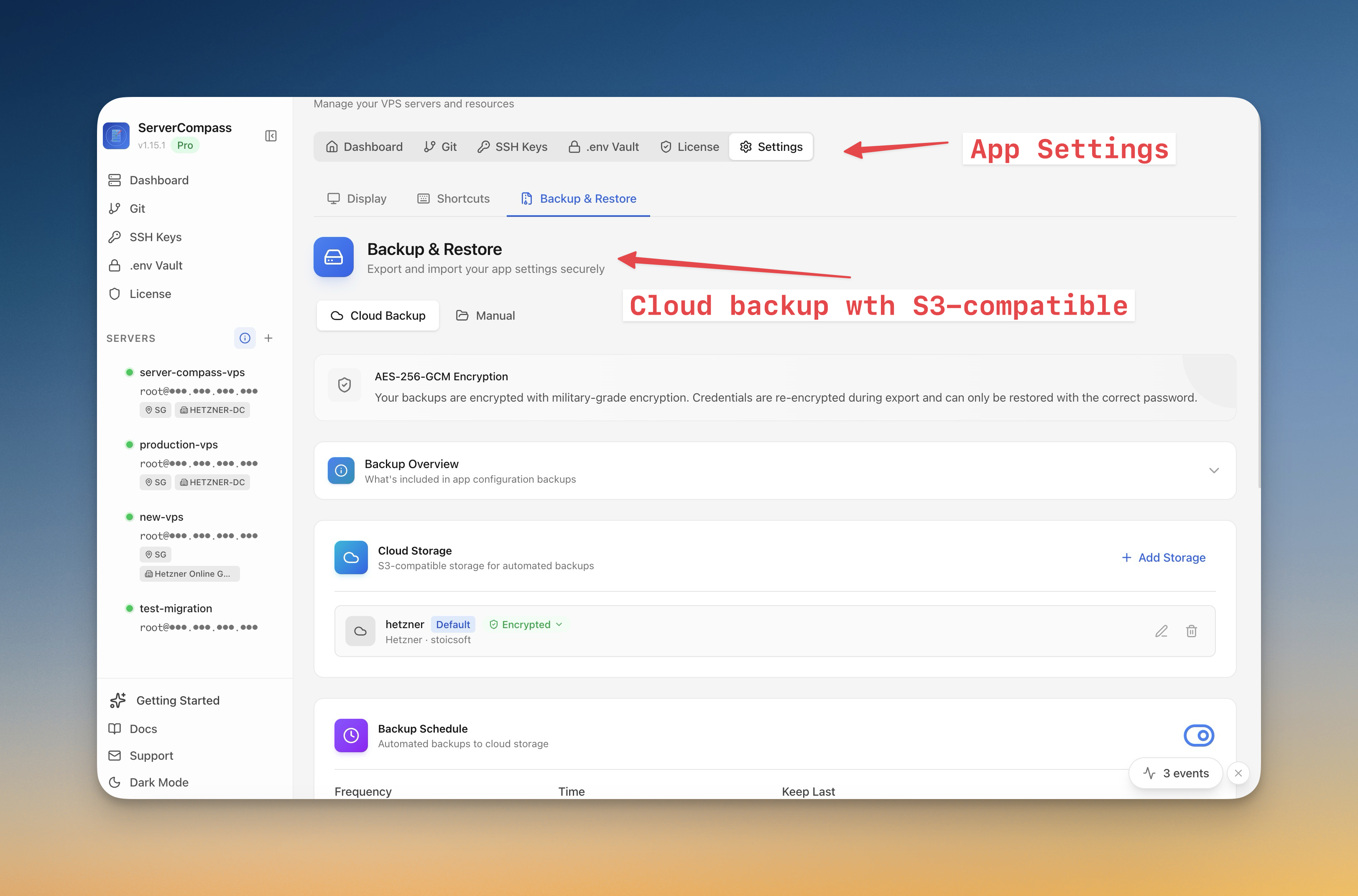
- Go to Server Settings > Backup tab
- Configure your backup schedule (daily, weekly, or custom)
- Select what to back up (databases, volumes, configs)
- Connect your cloud storage (S3-compatible)
- Set retention policy to automatically clean up old backups
Restoring from backup
- Open the Backup overview
- Browse available snapshots by date
- Click Restore to rebuild from a snapshot
- For migration, select "Restore to new server" and provide the target server connection
Screenshots
Video Tutorials
Related Features
Server Backups & Cloud Storage
Automated backups of stacks, volumes, databases, environment files, SSL certificates, and cron jobs. Store encrypted backups in S3-compatible cloud storage with flexible scheduling — hourly, daily, weekly, or monthly.
Server Snapshots
Export your entire server to a single AES-256 encrypted .scz file — Docker stacks, volumes, databases, domains, cron jobs, alerts, and notification channels. Save locally or upload to S3, then restore to the same server for disaster recovery or rebuild on a new VPS for migration. Domain remapping lets you switch domains during restore.
Ready to try Server Compass?
Download the app and deploy your first application in under 5 minutes.
Download Server Compass