Run Your Server as a Sudo User
Move Server Compass off root onto an ordinary account with sudo, verify the account works, and disable root login safely.
Why not connect as root
Connecting as root means every action Server Compass takes runs with unrestricted privileges, and every app you deploy lands in root's home folder. Most hardening checklists require that direct root login be disabled entirely.
From v1.43.0, Server Compass runs fully as a non-root sudo user. Firewall rules, brute-force protection, SSH hardening, Docker installs and deploys all work from an ordinary account with sudo.
Check who you are connected as
Open your server's Security tab. It states which account Server Compass is signed in with and whether passwordless sudo is available on it.
If you are connected as root, a Create a sudo user recommendation appears on the same tab.
Create the sudo account
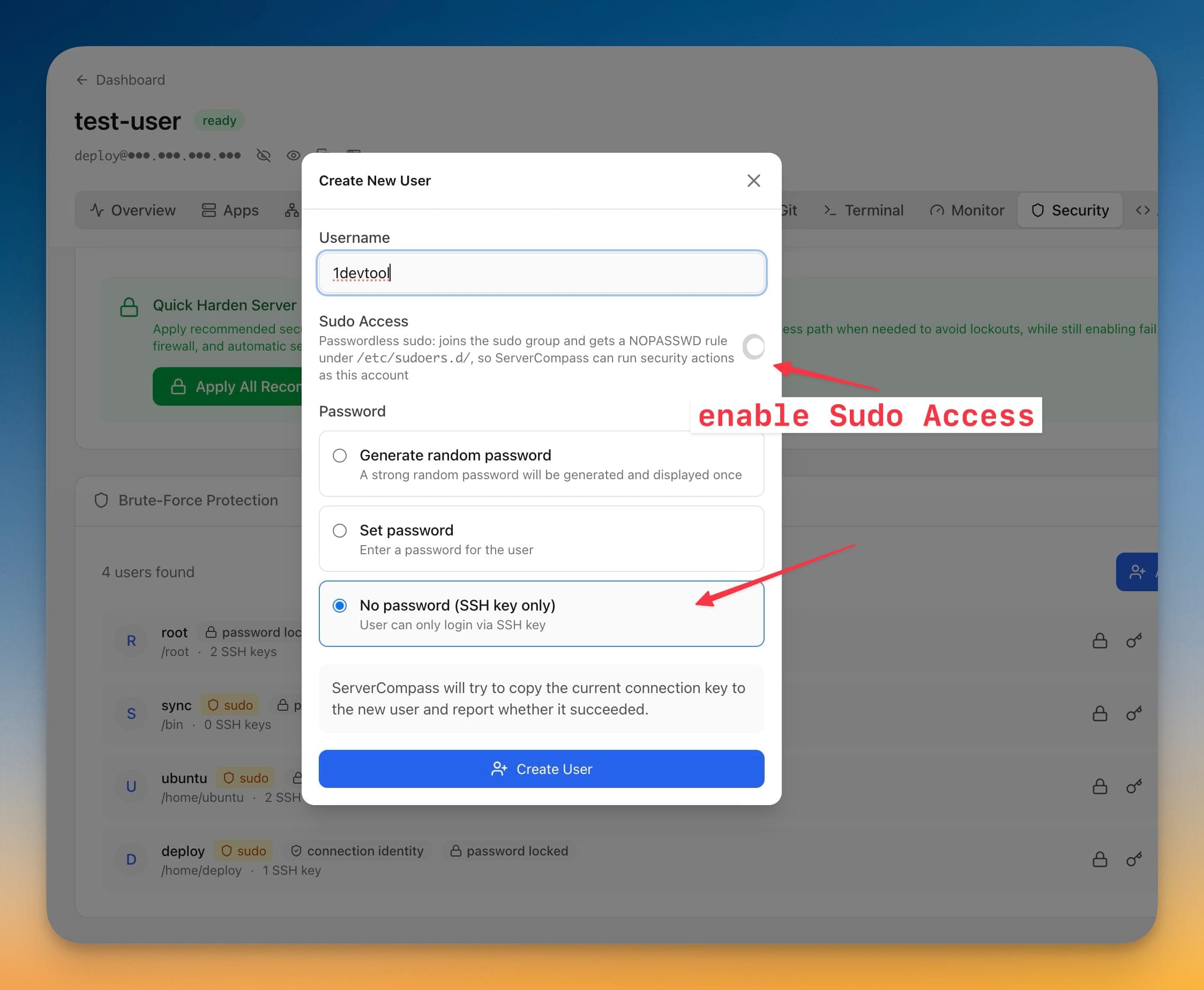
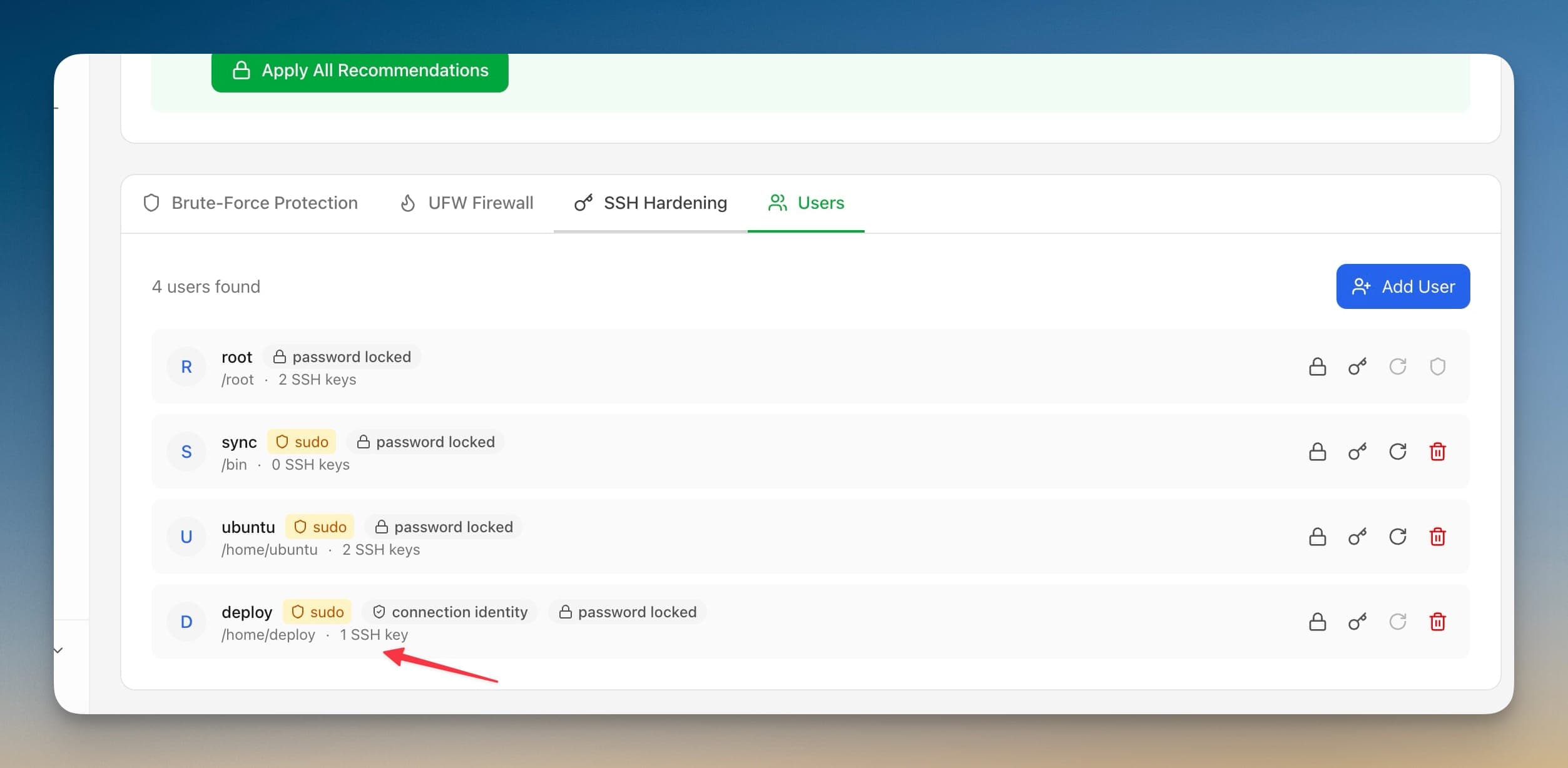
- Go to Security > Users and choose Add User
- Enter a Username
- Enable Sudo Access — the account joins the sudo group and gets a
NOPASSWDrule under/etc/sudoers.d/, so Server Compass can run security actions as it - Pick a password option:
- Generate random password — a strong password shown once
- Set password — at least 8 characters
- No password (SSH key only) — login is by key only
- Choose Create User
Server Compass copies the current connection key to the new account and reports whether the copy actually succeeded, so you do not end up with an account you cannot log in to.
Switch the connection over
Use Sync hardening to a user on the Security tab. It runs as a checked sequence:
- Install the app's SSH key for the user
- Grant passwordless sudo
- Verify passwordless sudo actually works
- Verify an SSH login as that user
Only when all four pass does Server Compass offer to switch the connection to the new account. If any step fails, you stay connected as the account that currently works.
Disable root login safely
On the SSH Hardening tab, Disable root login stays locked until Server Compass has verified a working sudo account with an authorized key — the control reads Requires passwordless sudo and an authorized SSH key until that is true.
Server Compass also takes a timestamped backup before applying any SSH change and keeps the five most recent, so the change is reversible from the app. See SSH Hardening for the restore flow.
What happens to existing apps
Apps you already deployed as root keep running from root's home folder — switching accounts does not move them, and Server Compass now warns you about this when you switch.
Apps deployed after the switch land in the sudo user's home folder. Zero-downtime deploys use the app's real folder rather than assuming root's.
Screenshots
Frequently Asked Questions
Do I need to recreate apps deployed as root?
No. Existing apps keep running from root's home folder. Only apps deployed after you switch accounts land in the sudo user's home.
What does the Sudo Access toggle actually write?
It adds the account to the sudo group and writes a NOPASSWD rule under /etc/sudoers.d/, so Server Compass can run security actions non-interactively.
What if the new account cannot connect?
The switch verifies the key, the sudo grant, passwordless sudo and an SSH login before moving across. If any check fails, the connection stays on the working account.
Related Features
Run as a Sudo User
Connect Server Compass to your VPS as an ordinary account with sudo instead of root. Firewall rules, brute-force protection, SSH hardening, Docker installs and deploys all work from that account, and apps land in its home folder rather than root's.
Server User Management
Create, modify, and manage server users from the UI. Set permissions, change passwords, and manage sudo access.
SSH Hardening
Apply SSH security best practices with one click. Disable root login, change ports, and configure key-only auth.
SSH Hardening Backups
Every SSH configuration change is backed up first, timestamped and restorable from the app. The five most recent backups are kept, and a restore that would reopen a port your firewall still blocks is refused unless you allow it.
Ready to try Server Compass?
Download the app and deploy your first application in under 5 minutes.
Download Server Compass