Back to documentation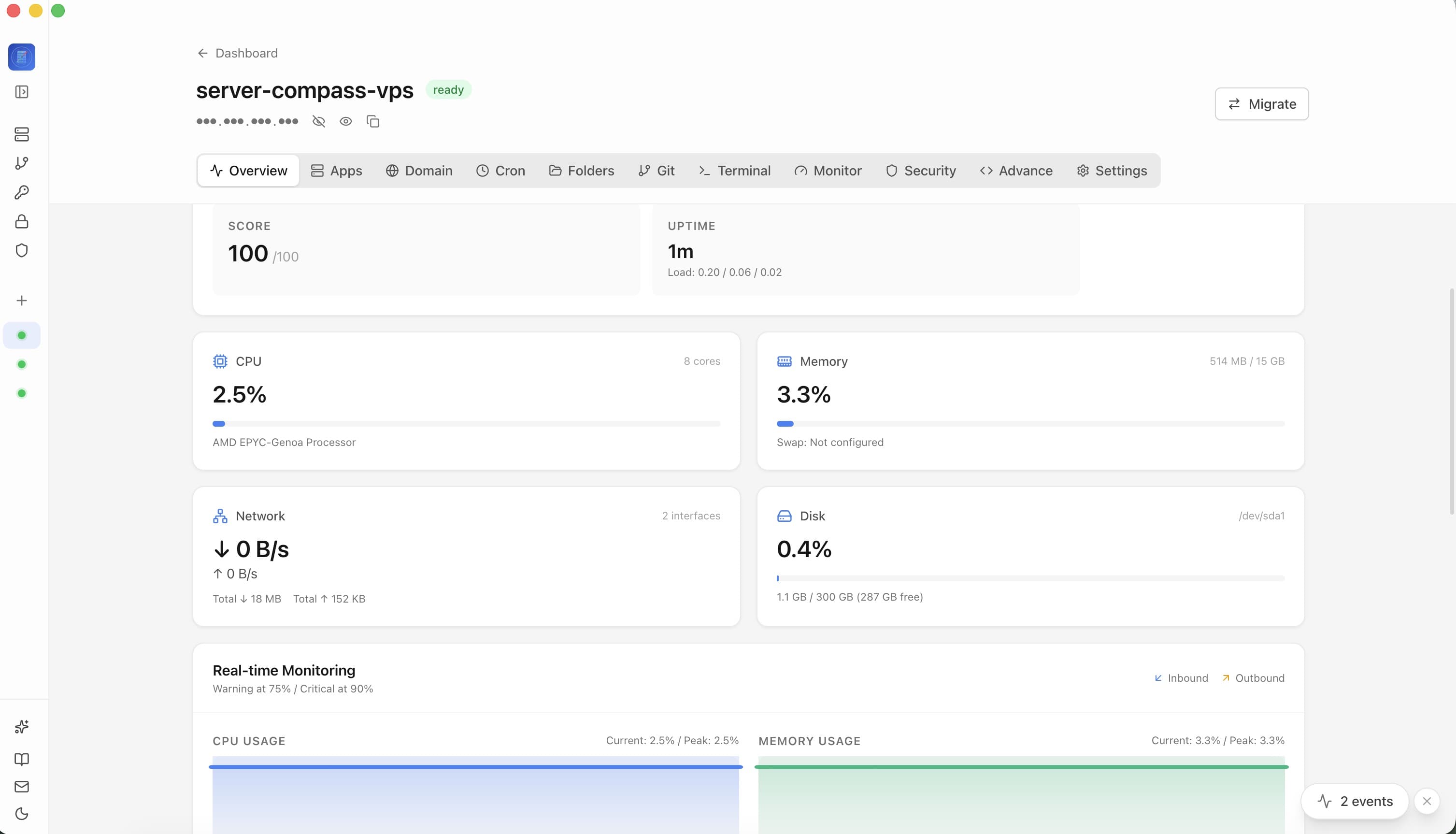
Server Management
Understanding the Server Dashboard
Learn how to use the server overview dashboard to monitor resources and manage your VPS.
Beginner4 min readUpdated 2024-02-01
Dashboard layout
The server dashboard shows:
- Resource Usage: CPU, RAM, and disk usage at a glance
- Server Info: OS, location, provider, uptime
- Quick Actions: Docker setup, security audit, terminal access
- Deployed Apps: List of all applications on this server
Resource monitoring
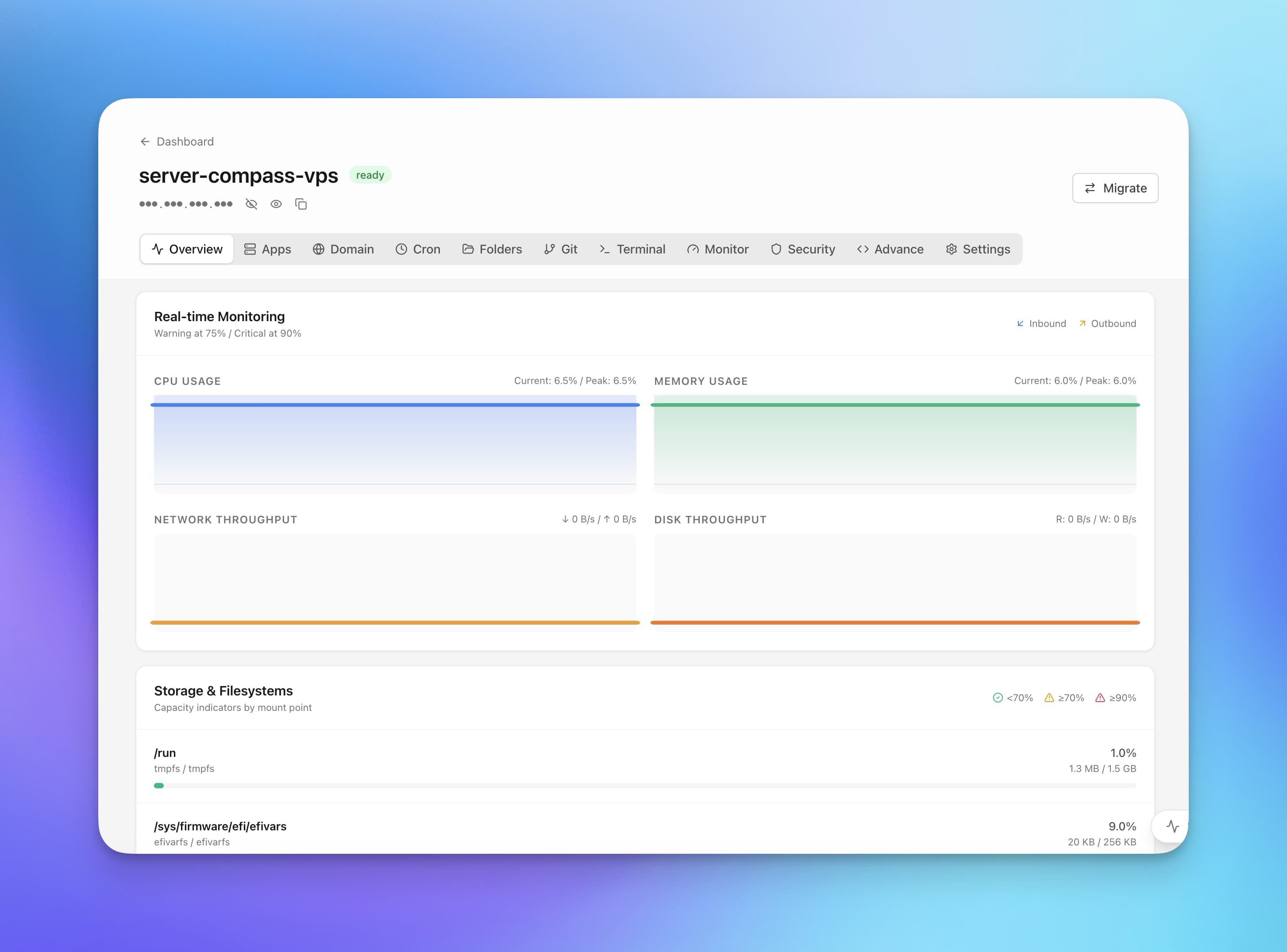
View real-time resource usage:
- CPU: Current and historical CPU utilization
- Memory: Used vs available RAM
- Disk: Storage usage per partition
- Network: Bandwidth usage (with monitoring agent)
Install the optional monitoring agent for detailed metrics and historical graphs.
Server information
The info panel displays:
- Operating system and version
- Server location (if detectable)
- VPS provider
- IP address and hostname
- Authentication method
- Uptime
Screenshots
Related Features
Ready to try Server Compass?
Download the app and deploy your first application in under 5 minutes.
Download Server Compass