Custom App Display Names
Give every Docker app a friendly display name like "My WordPress Blog" while the original project slug stays intact on the server. The display name shows up across the apps list, grid view, table view, and the app dashboard header, and search matches both the friendly name and the slug.
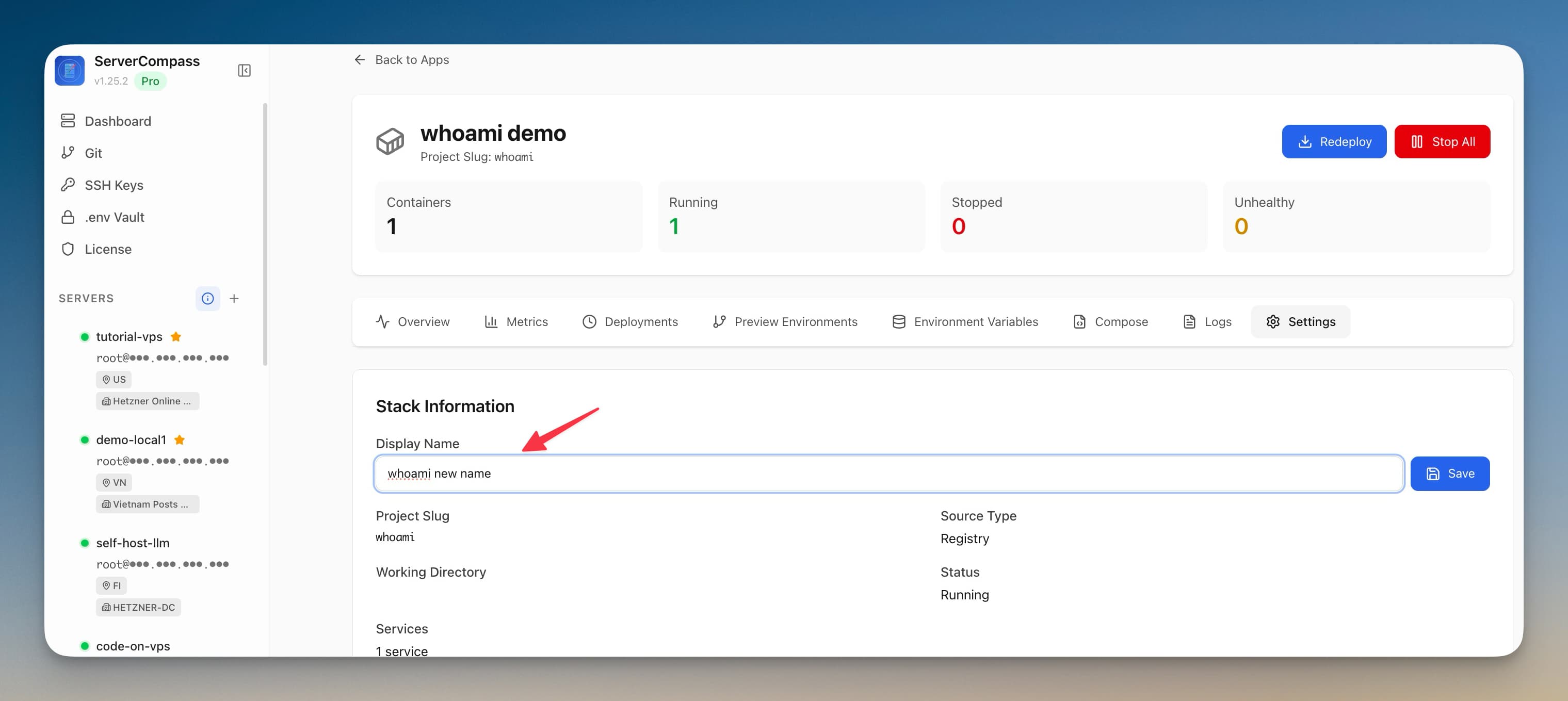
How Custom App Display Names Works
Custom App Display Names replaces complex workflows with a few clicks. Here's the process.
Open Dashboard
Navigate to your application dashboard to see all deployed apps.
Use Custom App Display Names
Access Custom App Display Names from the application detail view.
Take Action
Apply changes and monitor results in real time.
Doing It Manually Without Custom App Display Names
Think Custom App Display Names is overkill? Here's the alternative: raw terminal commands and manual config files.
SSH into your server
Connect to your server via terminal.
ssh root@your-server-ipList all containers
See what's running (and what's crashed).
docker ps -a
# Good luck remembering which container is which
# CONTAINER ID   IMAGE          STATUS
# a1b2c3d4e5f6   myapp:v1.2.3   Up 2 days
# f6e5d4c3b2a1 myapp:v1.2.2 Exited (1) 3 days agoCheck container logs
Dig through logs to find errors.
docker logs container_name --tail 500
# Scroll through 500 lines of unformatted text
# grep for errors manually
No syntax highlighting, no search, no filtering.
Restart a container
Stop and start the container manually.
docker compose stop app
docker compose start app
# Or the nuclear option:
docker compose down && docker compose up -dRollback to previous version
Hope you tagged your images properly.
# First, find the old image
docker images | grep myapp
# Edit docker-compose.yml to use old tag
nano docker-compose.yml
# Change image: myapp:latest to myapp:v1.2.2
docker compose up -d
If you didn't tag versions... good luck.
Let Server Compass Handle It
Custom App Display Names automates the tedious parts. What takes 30 minutes via terminal takes 30 seconds with Server Compass.
- Visual interface
- No terminal needed
- Built-in error handling
- Works on any VPS
Custom App Display Names Features
Everything you need for app management in one integrated tool, replacing complex CLI commands and manual configuration.
Get StartedWhy Custom App Display Names Matters
Server management shouldn't require a DevOps team. Custom App Display Names makes professional-grade app management accessible to everyone.
Complete Visibility
Custom App Display Names gives you a bird's-eye view of all your applications. No more guessing container states.
Instant Actions
Custom App Display Names puts start, stop, restart, and rollback at your fingertips with one-click controls.
Safe Operations
Custom App Display Names includes safety guards and confirmations to prevent accidental destructive actions.
Historical Context
Custom App Display Names keeps a full audit trail so you always know what changed and when.
Common Questions About Custom App Display Names
Common questions about Custom App Display Names in Server Compass
How do I access Custom App Display Names in Server Compass?
Custom App Display Names is available in the App Management section of Server Compass. Simply connect to your server, navigate to App Management, and you'll find Custom App Display Names ready to use. No additional setup or plugins required.
Does Custom App Display Names require any server-side installation?
No. Server Compass operates as a desktop application that connects to your server via SSH. Custom App Display Names works through this connection without installing any agents or packages on your server (except the optional monitoring agent for resource tracking).
Is Custom App Display Names included in all Server Compass plans?
Yes. Every Server Compass feature, including Custom App Display Names, is included with the one-time $29 payment. There are no tier restrictions, add-ons, or per-server fees. You get all 152+ features for all your servers.
Can I use Custom App Display Names with any VPS provider?
Custom App Display Names works with any VPS or dedicated server that supports SSH access and Docker. This includes DigitalOcean, Hetzner, Vultr, Linode, AWS EC2, Google Cloud, Azure, and any other provider. It also works with local servers and homelab setups.
What makes Custom App Display Names different from command-line alternatives?
Custom App Display Names provides a visual, intuitive interface that replaces complex CLI commands and configuration files. You get real-time feedback, safety confirmations, and a consistent experience across all your servers without memorizing syntax or writing scripts.
More App Management Features
Explore other app management capabilities in Server Compass
Application Dashboard
View all deployed applications with real-time status indicators. Switch between grid and table view for your preferred workflow.
Grid & Table View
Toggle between visual grid cards and compact table view. See container status, uptime, and quick actions at a glance.
Container Health Monitoring
Real-time container status with uptime tracking, health check indicators, and resource usage per container.
Zero-Downtime Deployment
Blue-green deployment keeps the old container serving while the new one is built and health-checked, then switches traffic over. Progress appears the moment you press Redeploy, the deployment is recorded in history right away with its commit, and a deploy that passes 45 minutes stops with a message pointing you at the logs.
Try Custom App Display Names Today
Download Server Compass and get access to Custom App Display Names along with 151 other features. One-time $29 payment. No subscriptions. No per-server fees.