April 5, 2026
How to Deploy Apps on a VPS Using Docker Compose
A practical guide to deploying applications on a VPS with Docker Compose. Learn how to write compose files, deploy multi-container apps, manage services, and follow production best practices.
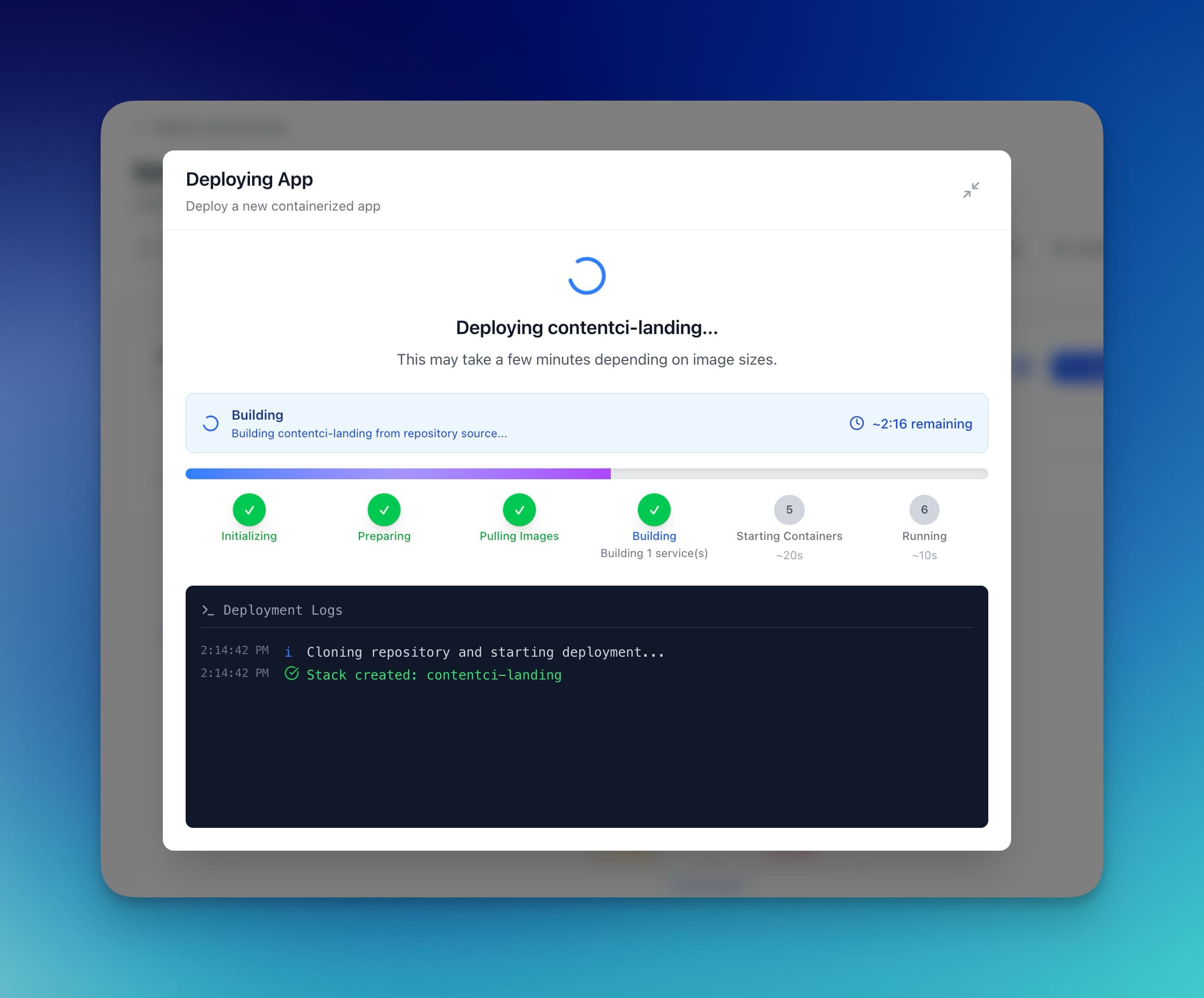
Docker Compose is the easiest way to deploy multi-container applications on a VPS. Instead of running long docker run commands with dozens of flags, you define your entire stack in a single YAML file and bring it up with one command. Whether you're deploying a web app with a database, a reverse proxy with multiple services, or a full monitoring stack, Docker Compose keeps everything declarative, reproducible, and version-controlled.
This guide walks you through everything you need to know about using Docker Compose to deploy apps on a VPS — from the basics of compose files to production-grade deployment strategies. By the end, you'll be able to deploy any application stack to your server with confidence.
What Is Docker Compose and Why Use It on a VPS?
Docker Compose is a tool for defining and running multi-container Docker applications. You describe your services, networks, and volumes in a docker-compose.yml file, then use a single command to create and start everything.
On a VPS, Docker Compose solves three problems that make raw Docker painful:
- Reproducibility — your entire stack is defined in code. No more "it worked on my machine" issues when deploying to a server.
- Multi-container orchestration — most apps need more than one container. A web app typically requires the app itself, a database, a cache, and a reverse proxy. Compose manages all of them together.
- Simplified management — start, stop, restart, and update your entire stack with single commands instead of managing containers individually.
For VPS deployments, Docker Compose hits the sweet spot between simplicity and power. You don't need Kubernetes for most workloads — a single compose file on a $10-20/month VPS handles more traffic than most applications will ever see. For a deeper dive on this trade-off, see our guide on deploying Docker containers to a VPS without Kubernetes.
Prerequisites
Before you start, make sure you have:
- A VPS running Ubuntu 22.04 or later (any provider works — DigitalOcean, Hetzner, Linode, etc.)
- SSH access to your server
- Docker Engine installed (version 24.0+)
- Docker Compose v2 (ships with Docker Engine as
docker compose)
If you don't have Docker installed yet, here is the quickest way to get it on Ubuntu:
# Install Docker using the official convenience script
curl -fsSL https://get.docker.com | sh

# Add your user to the docker group (log out and back in after this)
sudo usermod -aG docker $USER

# Verify installation
docker --version
docker compose version
Docker Compose v2 is included with modern Docker installations as a CLI plugin. You use it as docker compose (with a space) instead of the older standalone docker-compose binary.
Docker Compose File Basics
Every Docker Compose deployment starts with a docker-compose.yml file (or simply compose.yml — both names work). This file defines your services, networks, and volumes using YAML syntax.
Here is a minimal compose file that runs a Node.js app with a PostgreSQL database:
services:
  app:
    image: node:20-alpine
    working_dir: /app
    volumes:
      - ./src:/app
    ports:
      - "3000:3000"
    environment:
      DATABASE_URL: postgres://myuser:mypass@db:5432/mydb
    depends_on:
      db:
        condition: service_healthy
    restart: unless-stopped

  db:
    image: postgres:16-alpine
    environment:
      POSTGRES_USER: myuser
      POSTGRES_PASSWORD: mypass
      POSTGRES_DB: mydb
    volumes:
      - pgdata:/var/lib/postgresql/data
    healthcheck:
      test: ["CMD-SHELL", "pg_isready -U myuser -d mydb"]
      interval: 5s
      timeout: 3s
      retries: 5
    restart: unless-stopped

volumes:
  pgdata:
Let's break down the key sections:
Services
Each service is a container. The app service runs your application and the db service runs PostgreSQL. Services can reference each other by name — notice how app connects to the database using db as the hostname in the connection string.
Volumes
Named volumes like pgdata persist data across container restarts and rebuilds. Without a volume, your database data would disappear every time you redeploy. Bind mounts (./src:/app) map directories from your host into the container, useful for development but typically avoided in production.
depends_on and Healthchecks
The depends_on directive with condition: service_healthy ensures your app only starts after the database passes its health check. Without this, your app might try to connect to a database that hasn't finished initializing.
Restart Policies
Setting restart: unless-stopped ensures containers automatically restart after a crash or server reboot. This is essential for production — without it, your services stay down until you manually restart them.
Writing Production-Ready Compose Files
The basic example above works for development, but a production Docker Compose deployment on a VPS needs additional configuration. Here is a more complete example with a web app, database, Redis cache, and Traefik reverse proxy:
{`services:
  traefik:
    image: traefik:v3.0
    command:
      - "--providers.docker=true"
      - "--providers.docker.exposedbydefault=false"
      - "--entrypoints.web.address=:80"
      - "--entrypoints.websecure.address=:443"
      - "--certificatesresolvers.letsencrypt.acme.httpchallenge.entrypoint=web"
      - "[email protected]"
      - "--certificatesresolvers.letsencrypt.acme.storage=/letsencrypt/acme.json"
    ports:
      - "80:80"
      - "443:443"
    volumes:
      - /var/run/docker.sock:/var/run/docker.sock:ro
      - letsencrypt:/letsencrypt
    restart: unless-stopped

  app:
    build:
      context: .
      dockerfile: Dockerfile
    environment:
      DATABASE_URL: postgres://myuser:\$@db:5432/mydb
      REDIS_URL: redis://redis:6379
      NODE_ENV: production
    labels:
      - "traefik.enable=true"
      - "traefik.http.routers.app.rule=Host(\\\`app.example.com\\\`)"
      - "traefik.http.routers.app.entrypoints=websecure"
      - "traefik.http.routers.app.tls.certresolver=letsencrypt"
    depends_on:
      db:
        condition: service_healthy
      redis:
        condition: service_started
    restart: unless-stopped

  db:
    image: postgres:16-alpine
    environment:
      POSTGRES_USER: myuser
      POSTGRES_PASSWORD: \$
      POSTGRES_DB: mydb
    volumes:
      - pgdata:/var/lib/postgresql/data
    healthcheck:
      test: ["CMD-SHELL", "pg_isready -U myuser -d mydb"]
      interval: 10s
      timeout: 5s
      retries: 5
    restart: unless-stopped

  redis:
    image: redis:7-alpine
    volumes:
      - redisdata:/data
    restart: unless-stopped

volumes:
  pgdata:
  redisdata:
  letsencrypt:`}
This compose file adds several production-critical elements:
- Traefik reverse proxy — handles SSL certificate provisioning via Let's Encrypt and routes traffic to your app. No need to configure Nginx manually. See our post on zero-downtime deployments with Traefik for more details.
- Environment variable interpolation — secrets like
${DB_PASSWORD}are pulled from a.envfile rather than hardcoded in the compose file. - Named volumes for all stateful data — PostgreSQL data, Redis data, and SSL certificates all survive container rebuilds.
- Health checks — the database includes a health check so dependent services wait until it's actually ready.
Deploying to Your VPS
With your compose file ready, deploying to a VPS is straightforward. Here is the typical workflow:
Step 1: Transfer Your Files to the Server
Copy your project files to the VPS using scp, rsync, or a Git clone:
# Option A: Clone from Git (recommended)
ssh user@your-server
git clone https://github.com/youruser/yourapp.git
cd yourapp

# Option B: Copy files with rsync
rsync -avz --exclude node_modules --exclude .git \\
  ./ user@your-server:~/yourapp/
Step 2: Create Your Environment File
Create a .env file on the server with your production secrets:
# .env (on the server, NOT committed to Git)
DB_PASSWORD=your-secure-password-here
SECRET_KEY=your-app-secret-key
Docker Compose automatically reads .env files in the same directory as your compose file. Never commit this file to version control.
Step 3: Pull Images and Start Services
# Pull the latest images
docker compose pull

# Start all services in detached mode
docker compose up -d

# Verify everything is running
docker compose ps
The -d flag runs containers in the background. Without it, your terminal would be attached to the container logs and services would stop when you disconnect.
Step 4: Verify Your Deployment
# Check service status
docker compose ps

# View logs (all services)
docker compose logs

# View logs for a specific service
docker compose logs app --tail 50 --follow

# Test the endpoint
curl -I https://app.example.com
Managing Docker Compose Services
Once your stack is running, you need to know how to manage it day-to-day. Here are the essential Docker Compose commands for a production VPS:
Command
Purpose
docker compose ps
Show running services and their status
docker compose logs -f
Stream logs from all services
docker compose restart app
Restart a single service
docker compose stop
Stop all services (keeps containers)
docker compose down
Stop and remove containers and networks
docker compose down -v
Stop and also remove volumes (destroys data)
docker compose pull && docker compose up -d
Update to latest images and restart
docker compose exec app sh
Open a shell inside a running container
Updating Your Application
To deploy an update, pull the latest code, rebuild if needed, and restart:
# If using a Git-based workflow
cd ~/yourapp
git pull origin main

# Rebuild and restart (only recreates changed services)
docker compose up -d --build

# If using pre-built images, just pull and restart
docker compose pull
docker compose up -d
Docker Compose is smart about updates — it only recreates containers whose configuration or image has actually changed. Your database container won't restart just because you updated your app code.
Viewing Resource Usage
Monitor how much CPU and memory your services consume:
# Live resource stats
docker stats

# Disk usage by Docker
docker system df
For production monitoring, consider deploying a dedicated monitoring stack. Server Compass provides built-in resource monitoring that shows CPU, memory, and disk usage per container in a visual dashboard — no extra setup required.
Docker Compose Production Best Practices
Running Docker Compose in production on a VPS is different from local development. Here are the practices that separate a fragile deployment from a reliable one:
1. Pin Image Versions
Never use the latest tag in production. A new upstream release could break your application without warning.
# Bad - unpredictable
image: postgres:latest

# Good - predictable
image: postgres:16.2-alpine
2. Use .env Files for Secrets
Keep secrets out of your compose file and your Git history. Use .env files that only exist on the server:
# docker-compose.yml
environment:
  DB_PASSWORD: \$

# .env (gitignored)
DB_PASSWORD=super-secret-value
For a more robust approach, Server Compass includes an encrypted environment vault that stores secrets locally with AES encryption and lets you reuse them across deployments.
3. Set Resource Limits
Prevent a single container from consuming all available resources on your VPS:
services:
  app:
    deploy:
      resources:
        limits:
          cpus: "1.0"
          memory: 512M
        reservations:
          cpus: "0.25"
          memory: 128M
4. Configure Logging
Docker containers can generate massive log files that fill your disk. Set log rotation to prevent this:
services:
  app:
    logging:
      driver: "json-file"
      options:
        max-size: "10m"
        max-file: "3"
This caps each service at 30MB of logs (3 files at 10MB each). For disk management tips beyond logging, check out our guide on reclaiming disk space on your VPS.
5. Add Healthchecks to Every Service
Healthchecks let Docker (and your reverse proxy) know when a service is actually ready to receive traffic, not just running:
services:
  app:
    healthcheck:
      test: ["CMD", "curl", "-f", "http://localhost:3000/health"]
      interval: 30s
      timeout: 10s
      retries: 3
      start_period: 40s
6. Use Named Volumes for Persistent Data
Always use named volumes rather than bind mounts for production data. Named volumes are managed by Docker and survive docker compose down (unless you pass -v):
volumes:
  pgdata:        # Database files
  uploads:       # User uploads
  letsencrypt:   # SSL certificates
7. Automate Backups
Volumes persist your data, but they don't protect you from disk failure or accidental deletion. Set up regular backups of your database and critical volumes:
# Dump PostgreSQL to a file
docker compose exec db pg_dumpall -U myuser > backup.sql

# Back up a named volume
docker run --rm -v pgdata:/data -v $(pwd):/backup \\
  alpine tar czf /backup/pgdata-backup.tar.gz /data
If managing backup scripts feels tedious, Server Compass offers one-click database backups with optional encrypted cloud storage to S3-compatible providers.
Simplifying Docker Compose Deploys with Server Compass
The command-line workflow described above works, but it requires SSH access, manual file transfers, and memorizing a set of Docker commands. If you manage multiple apps or servers, this gets repetitive fast.
Server Compass is a desktop application that gives you a visual interface for Docker Compose deployments on any VPS. Instead of writing YAML by hand and running commands over SSH, you get:
- A built-in Compose editor — a full-featured YAML editor for writing and validating Docker Compose files visually. Syntax highlighting, auto-completion, and instant error feedback mean fewer typos and faster iteration.
- 247+ ready-made templates — the template library covers databases like PostgreSQL and Redis, applications like Ghost and n8n, monitoring tools like Grafana and Uptime Kuma, and much more. Each template is a production-tuned Docker Compose configuration you can deploy with one click.
- A Docker Stack Wizard — the multi-step wizard walks you through building a compose deployment from scratch. Pick your source (Git repo, Dockerfile, or registry image), configure environment variables, set up domains, and deploy — all without touching a terminal.
- Zero-downtime redeployments — update your app without dropping connections. Server Compass uses blue-green deployment with Traefik to switch traffic only after the new container passes health checks.
- Container management — start, stop, restart, view logs, and open a shell into any container from the GUI. No SSH required.
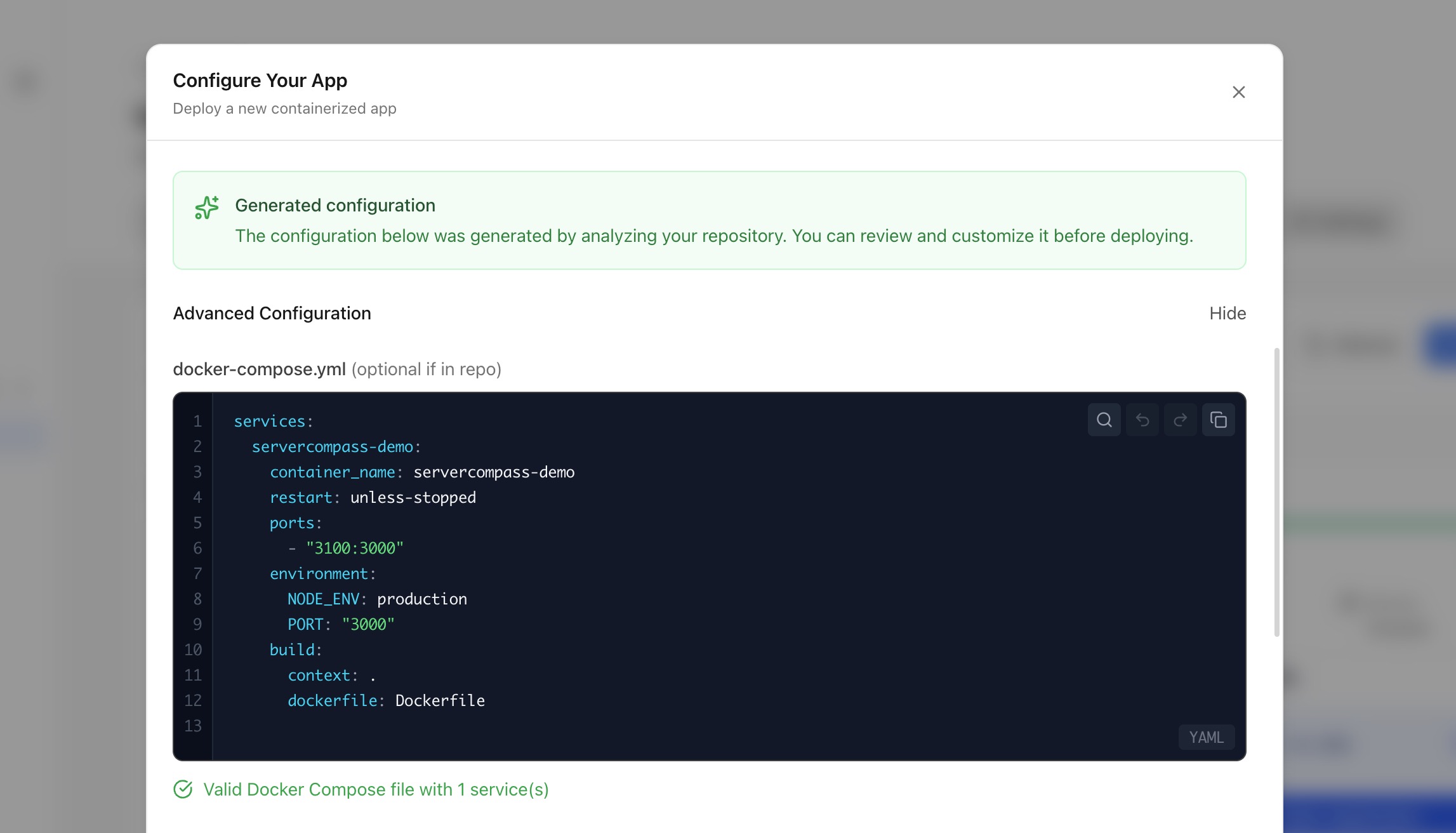
This is especially useful if you're managing multiple compose stacks across multiple servers. Server Compass connects to all your VPS instances from a single desktop app and lets you deploy, monitor, and manage everything in one place.
Common Docker Compose Patterns for VPS Deployments
Here are some patterns you will use repeatedly when deploying apps to a VPS with Docker Compose:
Web App + Database + Reverse Proxy
This is the most common pattern. Your app talks to a database over the internal Docker network, and a reverse proxy (Traefik or Nginx) handles SSL and routes external traffic:
{`services:
  proxy:
    image: traefik:v3.0
    ports: ["80:80", "443:443"]
    volumes:
      - /var/run/docker.sock:/var/run/docker.sock:ro
    # ... Traefik config

  app:
    build: .
    labels:
      - "traefik.enable=true"
      - "traefik.http.routers.app.rule=Host(\\\`myapp.com\\\`)"
    depends_on: [db]

  db:
    image: postgres:16-alpine
    volumes: [pgdata:/var/lib/postgresql/data]

volumes:
  pgdata:`}
Multiple Apps Behind a Shared Proxy
Run multiple applications on the same VPS by sharing a single Traefik instance. Each app gets its own compose file but connects to the shared proxy network:
{`# In each app's docker-compose.yml
networks:
  default:
  proxy:
    external: true

services:
  app:
    networks: [default, proxy]
    labels:
      - "traefik.docker.network=proxy"
      - "traefik.http.routers.myapp.rule=Host(\\\`myapp.com\\\`)"`}
This pattern lets you host dozens of apps on a single VPS, each with its own domain and automatic SSL. It is the pattern that Server Compass uses internally for its template-based deployments.
Scheduled Tasks
Run periodic jobs alongside your main application:
services:
  app:
    build: .
    # ... main app config

  worker:
    build: .
    command: node worker.js
    depends_on: [db, redis]

  scheduler:
    build: .
    command: node cron.js
    depends_on: [db]
Troubleshooting Common Issues
When a Docker Compose deployment on your VPS doesn't work as expected, these commands help you diagnose the problem:
Container Won't Start
# Check logs for the failing service
docker compose logs app --tail 100

# Check if the container exited with an error
docker compose ps -a

# Inspect the container for configuration issues
docker inspect $(docker compose ps -q app)
Port Conflicts
# Find what's using a port
sudo lsof -i :80
sudo ss -tlnp | grep :80

# Use a different host port in your compose file
ports:
  - "8080:80"  # Map host 8080 to container 80
Out of Disk Space
# Check Docker disk usage
docker system df

# Remove unused images, containers, and networks
docker system prune -f

# Remove unused volumes (careful - this deletes data)
docker volume prune -f
Services Can't Communicate
If containers can't reach each other, check that they're on the same Docker network:
# List networks
docker network ls

# Inspect a network to see connected containers
docker network inspect yourapp_default
By default, Docker Compose creates a shared network for all services in a compose file. Services reference each other by their service name (e.g., db for the database, redis for the cache).
Next Steps
You now have a solid foundation for deploying applications on a VPS with Docker Compose. Here are some next steps to harden your setup:
- Set up CI/CD with GitHub Actions to automate deployments when you push to your main branch
- Configure security headers and rate limiting on your domains
- Create server snapshots for disaster recovery
- Deploy a monitoring stack with Grafana and Uptime Kuma to keep an eye on your services
If you want to skip the command-line setup and manage Docker Compose deployments visually, give Server Compass a try. It connects to any VPS over SSH and gives you a complete GUI for Docker deployments, database management, domain configuration, and more — all from your desktop.
Related in the StoicSoft network
If you're self-hosting on a VPS or working through a deployment guide like the one above, DeployToVPS is the StoicSoft network's handbook for VPS deployment recipes — docker-compose, nginx, traefik, and common app self-hosts.
If you're choosing a VPS provider or benchmarking real-world performance like the post above explores, StoicVPS is the StoicSoft network's independent tracker for VPS pricing, performance, and migration safety.
From across the StoicSoft network
Hand-curated reads on the same topic from sister sites in the StoicSoft family.
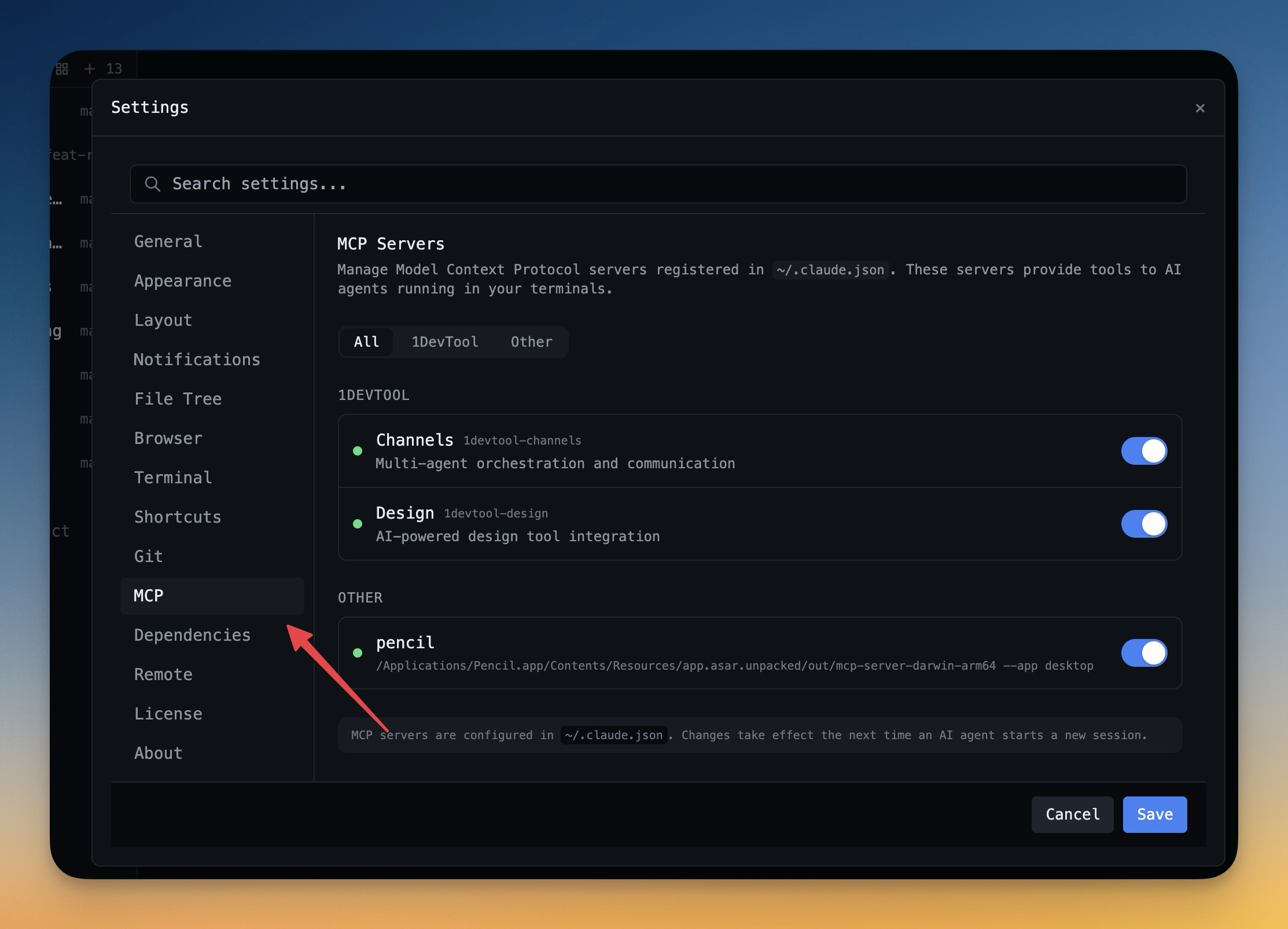 1DevTool11 min read
Self-Hosted AI Coding Assistant Workflow: Practical Setup Guide
A self-hosted AI coding workflow needs more than model hosting. You need environment control, connector governance, and reproducible operations. This guide covers the practical stack.
Read on 1devtool.com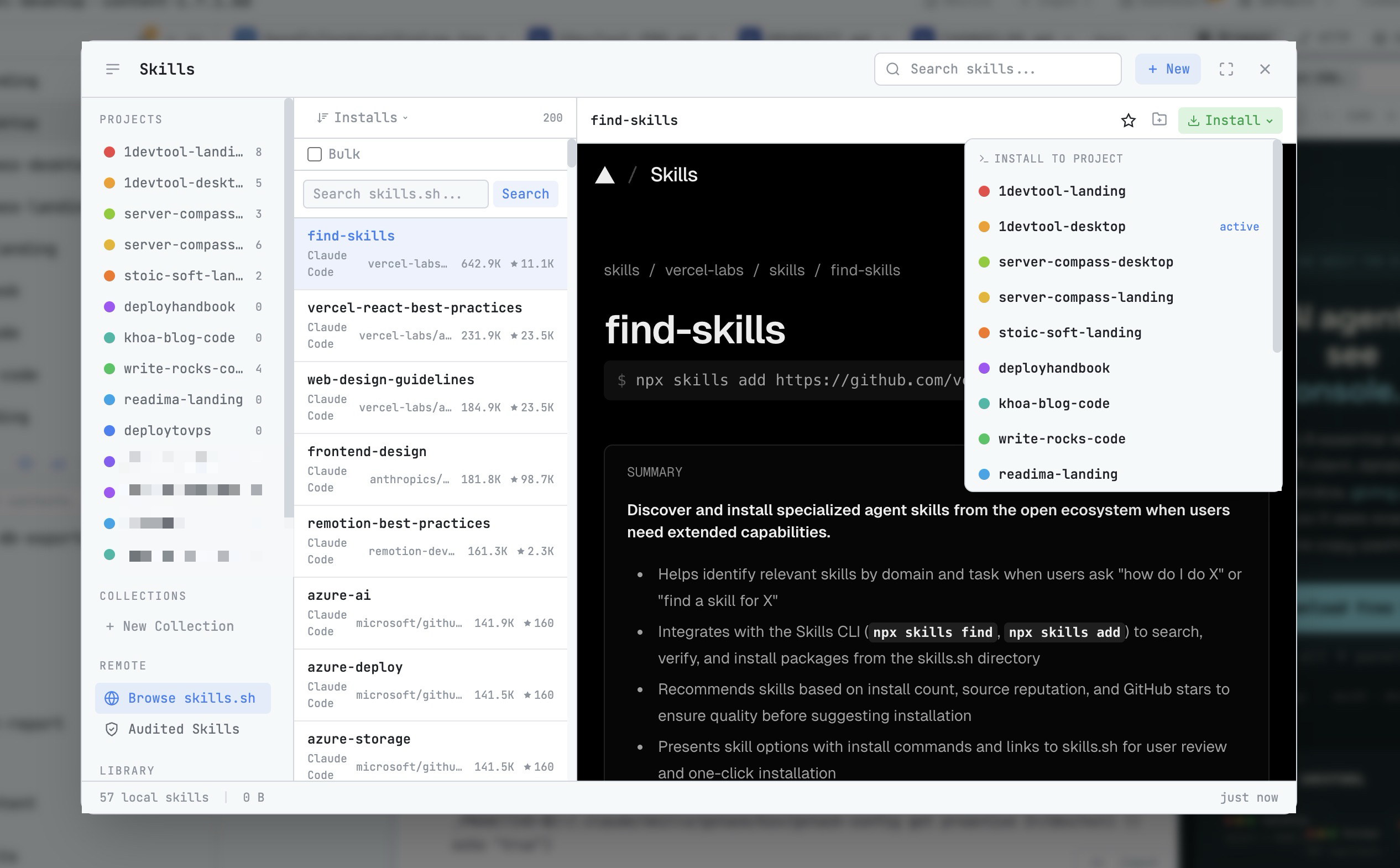 1DevTool8 min read
AI Skills Manager & Docker Deep Dive: Extend Your Agents, Monitor Your Containers
Browse, create, and install AI agent skills with built-in security scanning. Plus a redesigned Docker manager with live CPU, memory, and network monitoring for every container.
Read on 1devtool.com