Publish an App with Cloudflare Tunnel & Migrate from Dockge
Publish an app through Cloudflare Tunnel without opening a port, migrate an existing stack from Dockge, and link apps over a private Docker network.
Download v1.35.0
Get this version from GitHub Releases
What's Changed
New Features
12- Put one app online without opening any ports — publish a single container to the internet through a dedicated Cloudflare Tunnel that only makes outbound connections, so you never expose a firewall port, take over ports 80/443, or replace your existing reverse proxy
- Connect your Cloudflare account once — add your account and API token in Server Detail → Tunnel & Networking, test it, and it's saved encrypted on your machine
- Add a public hostname in a guided flow — pick your Cloudflare domain, the exact app and its port, and whether it speaks HTTP or HTTPS, then review the precise changes before anything happens
- Reach the app only through the tunnel — optionally close the app's public port after the tunnel is verified, so traffic can only arrive through Cloudflare
- Nothing gets overwritten by surprise — an existing DNS record, another Server Compass domain, or a change you made directly in Cloudflare is flagged for review instead of being replaced
- Check health and repair in one click — open layered diagnostics for any route, refresh its live status, or repair a broken connector without redoing setup
- Remove cleanly — take down a single hostname or an entire tunnel step by step, restore a closed port if you want it back, and safely retry cleanup if a step fails
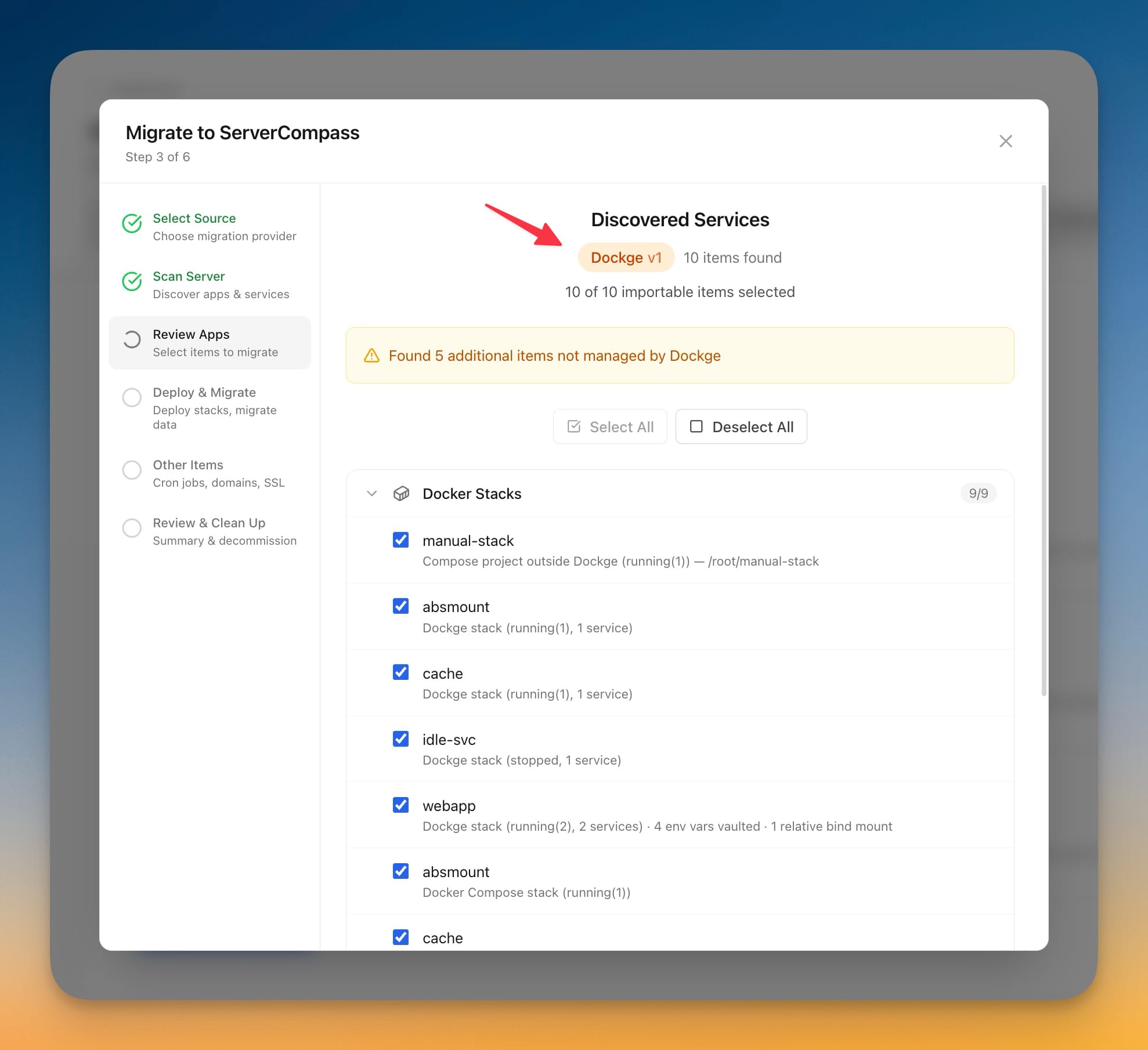
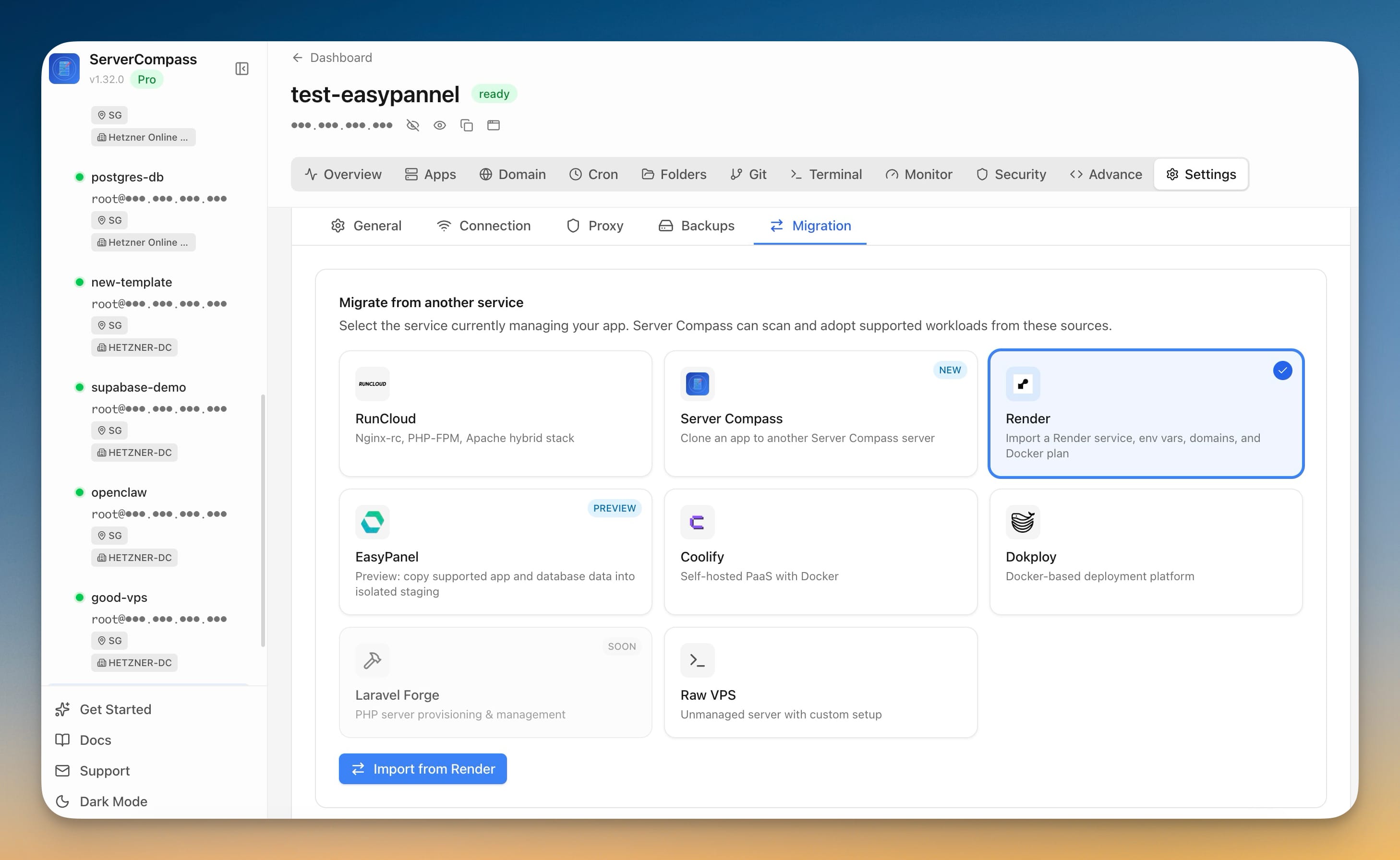
- Bring your Dockge stacks into Server Compass — start a Server Migration, choose Dockge, and Server Compass connects over your existing SSH login to find every stack Dockge is running
- Adopt apps exactly where they are — your stacks keep running with the same containers, data, volumes, and ports; nothing is recreated, moved, or taken offline
- Dockge keeps working — Dockge itself stays untouched and keeps running until you decide to retire it
- Your secrets stay protected — environment values are encrypted the moment they're read and never appear in logs, on screen, or in command history
- Full management afterward — once adopted, redeploys, domains, SSL, and backups work on a Dockge app just like any other Server Compass app
Improvements
6- Connect one app to another over a private network — let your API reach its database or cache by a stable private name, over traffic that never leaves the server or touches the public internet
- Pick the exact services and port — choose which part of each app connects and which container port to use, with a suggested connection address you can edit
- Close the public port safely — optionally remove the producer's public port after the private link is tested, and Server Compass remembers the exact setting so it can offer to restore it later if the port is free
- Know when a connection breaks — if you rename or remove a connected service in a later edit, the link is clearly marked "Drifted" instead of silently failing, so you can fix it or reconnect
- Clearer container-vs-host ports — connections use the app's internal container port (for example
5432for Postgres), with guidance so you don't accidentally use the published host port - See your networking in one place — private connections and tunnel routes now sit together under Tunnel & Networking and in each app's Overview
Bug Fixes
1- Fixed deployments appearing stuck after Server Compass was closed mid-deploy — a deployment interrupted by closing or restarting the app is now marked as interrupted on the next launch with a clear message to retry, instead of staying "in progress" forever
Screenshots

Dockge migration screen listing every stack discovered over SSH, each ready to adopt in place

Server Migration source picker with Dockge selected as the platform to import stacks from

Tunnel & Networking overview showing a live Cloudflare Tunnel with a healthy public hostname route

Dockge decommission step letting you retire the old Dockge install after stacks are adopted

Public hostnames list mapping Cloudflare domains to specific apps and container ports

Manual DNS setup guidance shown when an existing Cloudflare record needs review before changes apply

Guided Add Public Hostname flow choosing the Cloudflare domain, the app, its port, and HTTP vs HTTPS

Review Changes screen previewing the exact DNS and tunnel edits before anything is applied

Diagram of outbound-only tunnel traffic flowing from the app through Cloudflare with no inbound ports open

Connect Cloudflare Account panel for adding an account and API token, tested and stored encrypted locally

Tunnel & Networking empty state prompting you to connect a Cloudflare account to publish an app

Cloudflare API token permissions guidance listing the exact scopes the tunnel setup requires
dockge migration discovered services
dockge migration source picker
cloudflare tunnel overview live
dockge migration decommission cleanup
cloudflare tunnel public hostnames
cloudflare tunnel manual dns setup
cloudflare tunnel add public hostname
cloudflare tunnel review changes
cloudflare tunnel outbound flow
cloudflare tunnel connect account
cloudflare tunnel networking empty state
cloudflare tunnel token permissions