April 5, 2026
How to Deploy Next.js to a VPS with Docker (Step-by-Step Guide)
A practical, step-by-step guide to deploying your Next.js application to a VPS using Docker. Covers Dockerfile creation, Docker Compose setup, Traefik reverse proxy with automatic SSL, and how Server Compass can simplify the entire process.
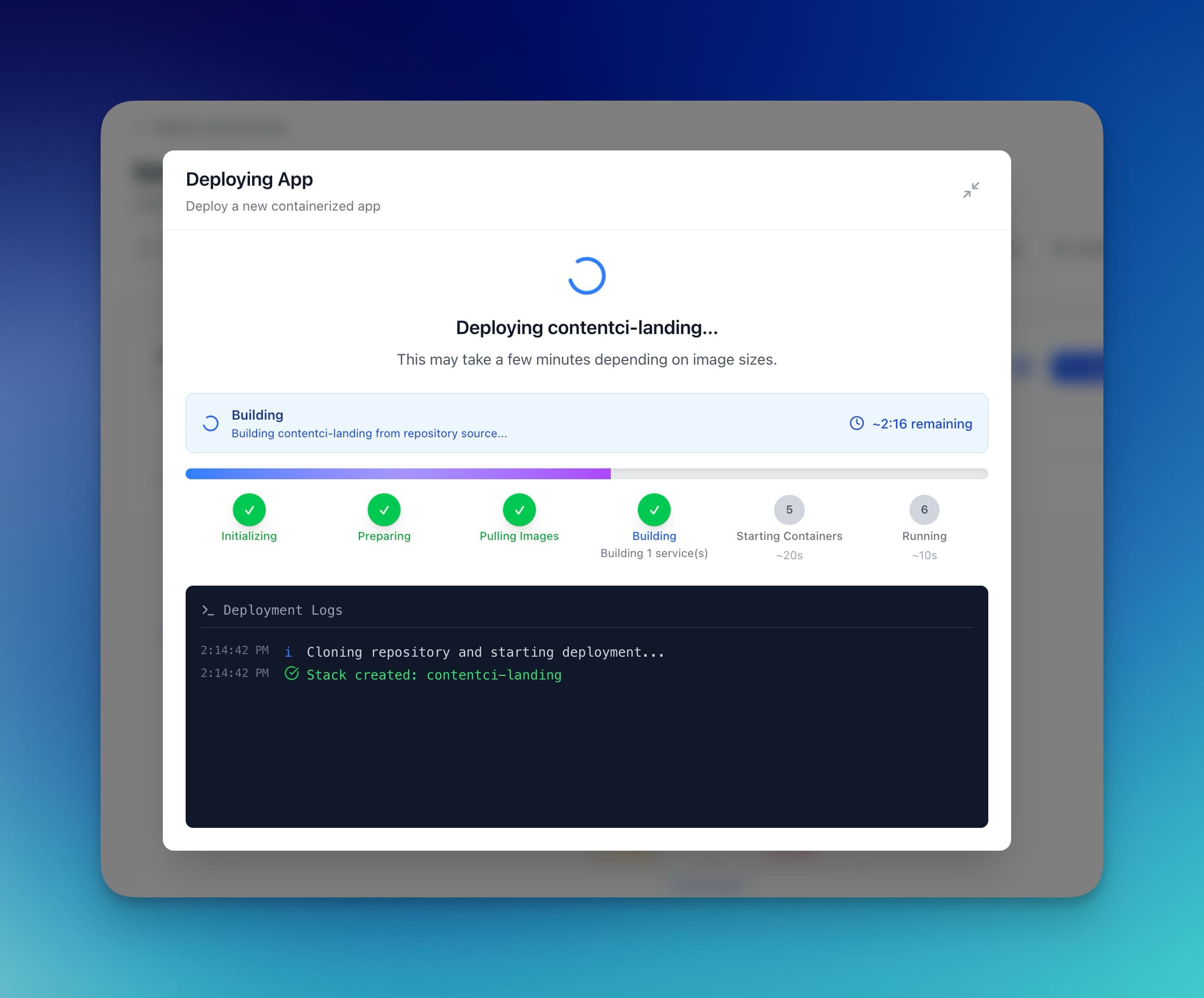
You built a Next.js app. It works perfectly on localhost:3000. Now you need to get it running on a real server. Vercel is the obvious choice, but maybe you want predictable costs, full control over your infrastructure, or the ability to run other services alongside your app. That is where deploying Next.js to a VPS with Docker comes in.
This guide walks you through every step of a Docker-based Next.js VPS deployment — from configuring your app for production to running it behind a reverse proxy with automatic SSL. If you want to skip the manual work entirely, we will also show you how Server Compass can do this in a few clicks.
Why Use Docker for Next.js Deployment?
You could deploy Next.js directly on your VPS with Node.js and PM2. But Docker gives you several advantages that matter in production:
- Reproducible builds — your app runs in the exact same environment everywhere, whether it is your laptop, staging, or production.
- Isolation — your Next.js app, database, and other services run in separate containers. A crashing app does not take down your database.
- Easy rollbacks — rolling back is as simple as pointing to a previous Docker image tag.
- Multi-service deployments — need PostgreSQL, Redis, or a background worker alongside your app? Docker Compose handles all of it in one file.
- Smaller production images — with multi-stage builds and Next.js standalone mode, your final image can be under 200 MB.
For a broader look at all deployment methods (PM2, Docker, Nginx), check out our complete Next.js VPS deployment guide .
Prerequisites
Before you start, make sure you have:
- A VPS — any provider works: Hetzner, DigitalOcean, Linode, or Vultr. At least 1 GB RAM and 1 vCPU. Ubuntu 22.04 or 24.04 recommended.
- Docker and Docker Compose installed — we will cover this below.
- A Next.js application — either a new
create-next-appproject or an existing app. - A domain name — pointed to your server's IP with an A record (needed for SSL).
- SSH access — root or sudo access to your server.
Step 1: Configure Next.js for Standalone Output
Next.js has a standalone output mode that creates a minimal production bundle with only the files and dependencies your app actually needs. This is critical for Docker because it keeps your image size small and your build fast.
Open next.config.ts (or next.config.js) and add the output setting:
// next.config.ts
import type { NextConfig } from 'next'

const nextConfig: NextConfig = {
  output: 'standalone',
}

export default nextConfig
Run npm run build locally to verify it works. You should see a .next/standalone directory after the build completes. This folder contains a self-contained Node.js server that does not need node_modules.
Step 2: Write a Multi-Stage Dockerfile
A multi-stage Dockerfile keeps your production image lean by separating the build environment from the runtime environment. Create a Dockerfile in your project root:
# Stage 1: Install dependencies
FROM node:20-alpine AS deps
WORKDIR /app
COPY package.json package-lock.json* ./
RUN npm ci

# Stage 2: Build the application
FROM node:20-alpine AS builder
WORKDIR /app
COPY --from=deps /app/node_modules ./node_modules
COPY . .
RUN npm run build

# Stage 3: Production runtime
FROM node:20-alpine AS runner
WORKDIR /app

ENV NODE_ENV=production
ENV NEXT_TELEMETRY_DISABLED=1

# Create a non-root user
RUN addgroup --system --gid 1001 nodejs
RUN adduser --system --uid 1001 nextjs

# Copy the standalone output
COPY --from=builder /app/public ./public
COPY --from=builder --chown=nextjs:nodejs /app/.next/standalone ./
COPY --from=builder --chown=nextjs:nodejs /app/.next/static ./.next/static

USER nextjs

EXPOSE 3000
ENV PORT=3000
ENV HOSTNAME="0.0.0.0"

CMD ["node", "server.js"]
This Dockerfile does three things:
- deps stage — installs
node_modulesin an isolated layer so dependency changes do not invalidate the build cache. - builder stage — copies your source code and runs
npm run buildto generate the standalone output. - runner stage — copies only the standalone output, static files, and public assets into a minimal Alpine image. No
node_modules, no source code.
The final image is typically 150–200 MB depending on your dependencies, compared to 1+ GB for a naive single-stage build.
Also create a .dockerignore file to keep your build context small:
node_modules
.next
.git
*.md
.env*.local
Step 3: Set Up Docker Compose
Docker Compose lets you define your entire stack in a single YAML file. Create a docker-compose.yml in your project root:
version: '3.8'

services:
  nextjs:
    build:
      context: .
      dockerfile: Dockerfile
    ports:
      - "3000:3000"
    environment:
      - NODE_ENV=production
      - DATABASE_URL=\$
    restart: unless-stopped
Test it locally first:
docker compose build
docker compose up -d
Open http://localhost:3000 to verify your app runs correctly inside the container. If you see your app, the Docker setup is working.
Step 4: Install Docker on Your VPS
SSH into your server and install Docker:
ssh root@your-server-ip

# Install Docker
curl -fsSL https://get.docker.com | sh

# Verify installation
docker --version
docker compose version
If you are on Ubuntu, this installs Docker Engine and the Compose plugin. You should see version numbers for both commands.
Step 5: Transfer Your Code and Build
You have two options for getting your code onto the server:
Option A: Clone from Git
If your code is on GitHub (or any Git host), clone it directly:
git clone https://github.com/your-username/your-nextjs-app.git
cd your-nextjs-app
Option B: Upload with rsync
If your code is not in a repository, use rsync from your local machine:
rsync -avz --exclude node_modules --exclude .next \\
  ./ root@your-server-ip:/opt/your-nextjs-app/
Once the code is on the server, create your environment file:
cd /opt/your-nextjs-app
cp .env.example .env
nano .env  # Add your production values
Then build and start:
docker compose build
docker compose up -d
Your Next.js app is now running on port 3000. But you still need a reverse proxy and SSL.
Step 6: Add a Reverse Proxy with SSL
You do not want users accessing your app via http://your-ip:3000. You need a reverse proxy that handles HTTPS and routes traffic to your container. Traefik is an excellent choice because it integrates natively with Docker and handles Let's Encrypt certificates automatically.
Update your docker-compose.yml to include Traefik:
{`version: '3.8'

services:
  traefik:
    image: traefik:v3.0
    command:
      - "--providers.docker=true"
      - "--providers.docker.exposedbydefault=false"
      - "--entrypoints.web.address=:80"
      - "--entrypoints.websecure.address=:443"
      - "--certificatesresolvers.letsencrypt.acme.httpchallenge=true"
      - "--certificatesresolvers.letsencrypt.acme.httpchallenge.entrypoint=web"
      - "[email protected]"
      - "--certificatesresolvers.letsencrypt.acme.storage=/letsencrypt/acme.json"
    ports:
      - "80:80"
      - "443:443"
    volumes:
      - /var/run/docker.sock:/var/run/docker.sock:ro
      - letsencrypt:/letsencrypt
    restart: unless-stopped

  nextjs:
    build:
      context: .
      dockerfile: Dockerfile
    labels:
      - "traefik.enable=true"
      - "traefik.http.routers.nextjs.rule=Host(\`yourdomain.com\`)"
      - "traefik.http.routers.nextjs.entrypoints=websecure"
      - "traefik.http.routers.nextjs.tls.certresolver=letsencrypt"
      - "traefik.http.services.nextjs.loadbalancer.server.port=3000"
    environment:
      - NODE_ENV=production
    restart: unless-stopped

volumes:
  letsencrypt:`}
Replace [email protected] with your email and yourdomain.com with your actual domain. Make sure your domain's A record points to your server's IP address before running this.
Deploy the updated stack:
docker compose up -d
Traefik will automatically obtain a Let's Encrypt certificate and start serving your Next.js app over HTTPS. Visit https://yourdomain.com — you should see your app with a valid SSL certificate.
For more details on reverse proxy configuration, including using Nginx or Caddy instead of Traefik, see our guide on using your existing reverse proxy with Server Compass .
Step 7: Manage Environment Variables
Never bake secrets into your Docker image. Use Docker Compose's .env file support instead:
# .env (on your server, NOT in git)
DATABASE_URL=postgresql://user:pass@db:5432/myapp
NEXTAUTH_SECRET=your-secret-here
NEXTAUTH_URL=https://yourdomain.com
Reference these in your docker-compose.yml:
services:
  nextjs:
    environment:
      - DATABASE_URL=\$
      - NEXTAUTH_SECRET=\$
      - NEXTAUTH_URL=\$
Docker Compose automatically reads the .env file from the same directory. Make sure .env is in your .gitignore so secrets never get committed.
Step 8: Add a Database (Optional)
Most Next.js apps need a database. Add PostgreSQL to your Docker Compose stack:
services:
  # ... traefik and nextjs from above ...

  db:
    image: postgres:16-alpine
    environment:
      - POSTGRES_USER=\$
      - POSTGRES_PASSWORD=\$
      - POSTGRES_DB=\$
    volumes:
      - postgres_data:/var/lib/postgresql/data
    restart: unless-stopped

volumes:
  letsencrypt:
  postgres_data:
Your Next.js app can connect to the database using the Docker service name: postgresql://user:pass@db:5432/myapp. No need to expose port 5432 to the internet — containers on the same Docker network can communicate directly.
Need to manage your database visually? Check out the Server Compass database admin panel or our guide to self-hosting PostgreSQL on your VPS .
Step 9: Deploy Updates
When you push new code, SSH into your server and rebuild:
cd /opt/your-nextjs-app
git pull
docker compose build
docker compose up -d
For zero-downtime deployments, you can use Docker's rolling update strategy or Traefik's health checks. We cover this in detail in our zero-downtime deployment guide .
For automated deployments, you can set up a GitHub Actions CI/CD pipeline that builds and deploys on every push to main.
Common Issues and Fixes
Problem
Cause
Fix
Build fails with "out of memory"
VPS has less than 1 GB RAM
Add swap space: fallocate -l 2G /swapfile
.next/standalone missing
Forgot output: 'standalone'
Add it to next.config.ts and rebuild
Images and static files 404
Missing public and .next/static copy
Verify COPY lines in Dockerfile runner stage
SSL certificate not issued
DNS not pointing to server
Check A record and wait for propagation
Container exits immediately
Missing environment variables
Check logs: docker compose logs nextjs
The Easy Way: Deploy Next.js with Server Compass
The steps above work, but they involve writing Dockerfiles, configuring Traefik, managing environment variables, and SSH-ing into your server every time you deploy. If you would rather skip all of that, Server Compass handles the entire workflow from a desktop app.
Here is what the process looks like:
- Connect your VPS — paste your server IP and password. No SSH key setup required.
- Connect your GitHub repo — select your Next.js repository and branch.
- Deploy — Server Compass detects Next.js, generates the Dockerfile and Docker Compose configuration, sets up Traefik with automatic SSL, and deploys your app.
You also get a visual Docker stack wizard, real-time container logs, encrypted environment variable management, and staging and preview environments . Updates deploy with a click — no more SSH, no more remembering docker compose build && docker compose up -d.
There is a dedicated Next.js deployment video tutorial if you prefer watching over reading.
Next.js Docker Deployment vs Vercel
Wondering whether this is worth the effort compared to just using Vercel? Here is a quick comparison:
Factor
Vercel
VPS + Docker
Monthly cost (production app)
$20+/user + usage fees
$5–$10 flat
Bandwidth
Metered (overage charges)
Unmetered on most VPS plans
Deploy time
Git push (automatic)
Git pull + rebuild (or automated via CI/CD)
Run other services alongside
No
Yes (databases, Redis, workers)
Vendor lock-in
High (edge functions, ISR caching)
None
Infrastructure control
None
Full root access
For a deeper analysis, read our Server Compass vs Vercel comparison and Vercel pricing breakdown .
Production Checklist
Before calling your deployment production-ready, walk through this checklist:
output: 'standalone'is set innext.config.ts- Dockerfile uses multi-stage build with a non-root user
.dockerignoreexcludesnode_modules,.next, and.git- Environment variables are in
.env, not hardcoded in the image - SSL is configured via Traefik (or Nginx/Caddy) with auto-renewal
- Database volumes are persistent (not lost on container restart)
restart: unless-stoppedis set on all services- You can rebuild and redeploy without downtime
Next Steps
You now have a Next.js app running on your own VPS with Docker, a reverse proxy, and automatic SSL. Here are some things to explore next:
- Set up CI/CD with GitHub Actions to automate deployments on every push.
- Add more Docker containers to your stack — Redis, background workers, monitoring tools.
- Configure security headers and rate limiting for your domain.
- Set up encrypted backups so you can recover from any disaster.
Or skip the manual configuration entirely. Try Server Compass and deploy your Next.js app to any VPS in minutes — no Dockerfiles, no YAML, no SSH.
Related in the StoicSoft network
If you're choosing a VPS provider or benchmarking real-world performance like the post above explores, StoicVPS is the StoicSoft network's independent tracker for VPS pricing, performance, and migration safety.
From across the StoicSoft network
Hand-curated reads on the same topic from sister sites in the StoicSoft family.
 1DevTool10 min read
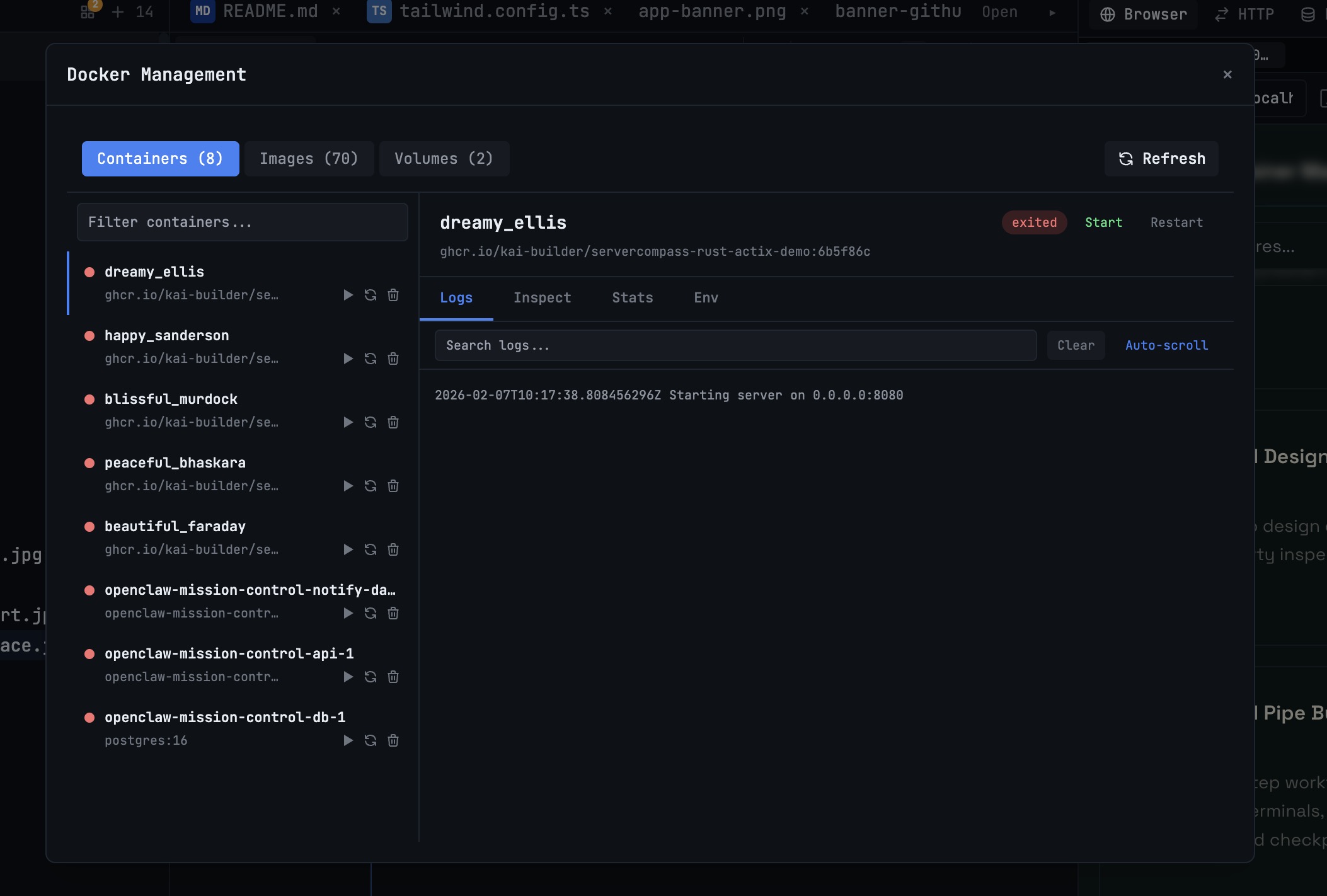
Docker Desktop Alternatives for Developers in 2026
Developers want a Docker workflow that stays close to code, logs, and AI agents. This comparison breaks down Docker Desktop alternatives by performance, observability, and daily usability.
Read on 1devtool.com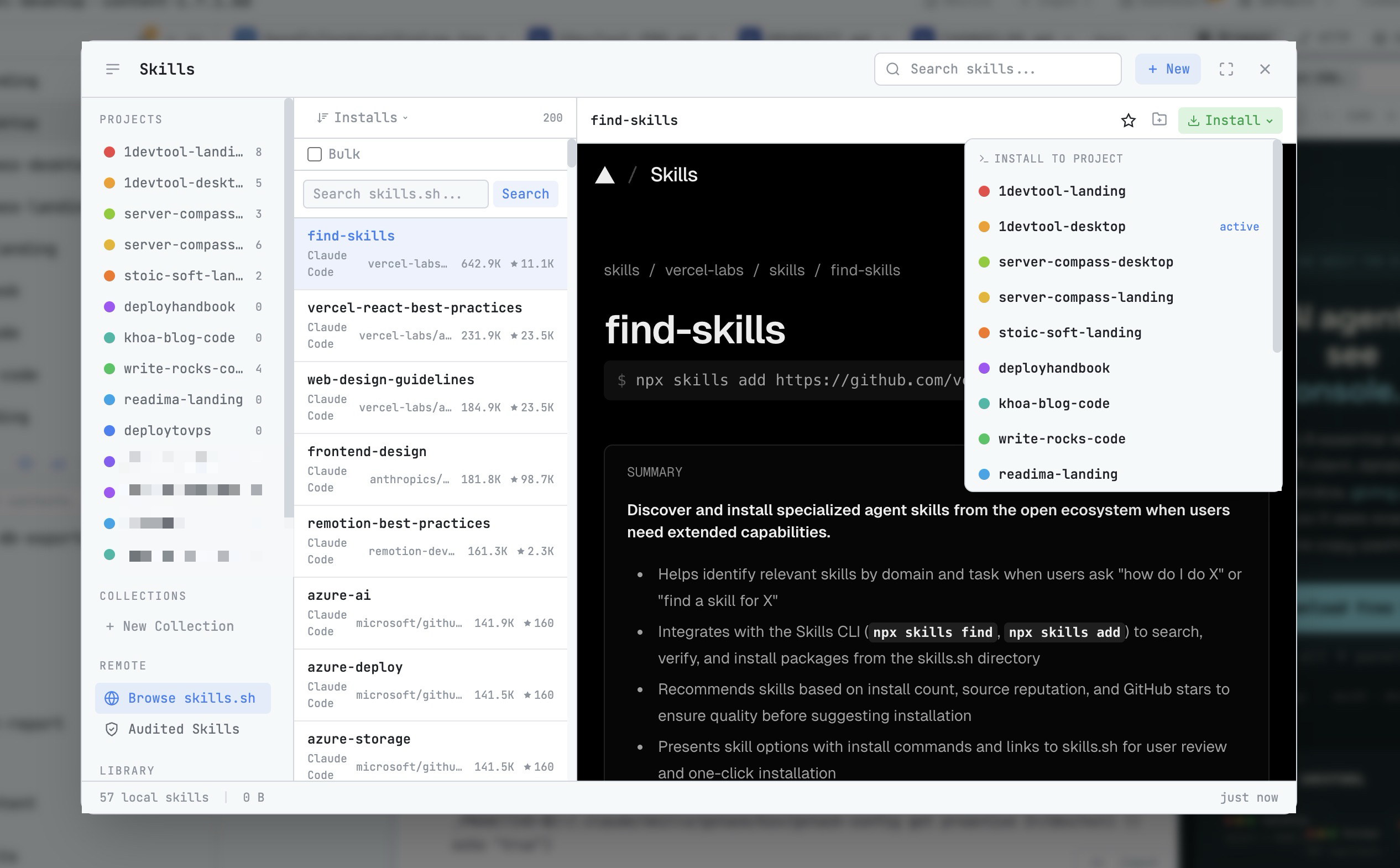 1DevTool8 min read
AI Skills Manager & Docker Deep Dive: Extend Your Agents, Monitor Your Containers
Browse, create, and install AI agent skills with built-in security scanning. Plus a redesigned Docker manager with live CPU, memory, and network monitoring for every container.
Read on 1devtool.com